End User License Agreement (EULA)
The End User License Agreement (EULA) can be found here
Support
For support on our products, please contact us at ECLANZProductSupport@dxc.com and our team will implement its best efforts to support your enquiry.
DXC Finance & Operations Licensing and Microsoft SHA256 ISV Licensing
Overview
Microsoft has announced the deprecation of SHA1-based Independent Software Vendor (ISV) licensing for Dynamics 365 Finance & Operations and recommends the use of SHA256 when generating ISV license files.
For additional information, refer to Microsoft’s documentation:
Does this change affect DXC products?
No.
The Microsoft SHA1 to SHA256 licensing change only applies to solutions that use Microsoft’s built-in ISV licensing framework, which relies on:
- LicenseCode objects
- Certificate-signed license files
- Customer-installed ISV license keys
DXC Finance & Operations solutions do not use the Microsoft ISV license key framework.
How are DXC products licensed?
DXC products are licensed through the DXC License Manager platform rather than Microsoft’s certificate-based ISV licensing mechanism.
DXC solutions:
- Do not deploy Microsoft ISV license files
- Do not contain LicenseCode objects for customer-installed licenses
- Do not require customers to generate, renew, or install Microsoft ISV license keys
- Are not dependent on SHA1 or SHA256 certificate hashing algorithms for product licensing
Licensing validation is managed through DXC’s License Manager solution.
Why does DXC use a different licensing model?
Microsoft’s ISV licensing model requires time-limited license files that must be renewed and installed by customers.
DXC’s licensing approach was designed to reduce operational risk by avoiding scenarios where access to licensed functionality could be interrupted because a new license file was not installed before an existing license expired.
By using DXC License Manager, licensing administration is centralized and does not rely on certificate-based license file deployment.
Frequently Asked Questions
Does DXC use SHA1 for product licensing?
No.
DXC products do not use Microsoft’s certificate-based ISV licensing framework and therefore do not rely on SHA1-based license generation.
Do customers need to upgrade DXC products because SHA1 support is ending?
No.
The Microsoft SHA1 deprecation for ISV license generation does not require any action from customers using DXC products licensed through DXC License Manager.
No licensing changes are currently required as a result of Microsoft’s SHA1 deprecation because DXC products do not utilize the Microsoft ISV licensing mechanism.
Support
If you have questions about DXC product licensing or require assistance understanding licensing architecture within your environment, please contact DXC Support.
Where can I identify the installed version of the applicable module
On the Navigation bar, select Help & Support > About.
A list of installed models will be displayed on the Version tab. Scroll to applicable product. The version information will be displayed on the right (example DXC Finance Utilities 10.0.40.202412041 (isv))
Is my installed product version compatible with next D365 version
Product’s Release notes’s Current version section will specify what D365 version(s) are compatible with the latest release.
For more details on what versions were tested with each D365 Preview and if there were any issues, see Version compatibility.
The matrix shows the minimum DXC build versions compatible for the Microsoft versions and builds.
Note: Recommended to upgrade to latest Product version at time of D365 upgrade.
How do I download the latest Product version
Our deployable packages are published on LCS.
Please contact us to be added to the solution.
After you have been added to the solution please follow these steps in the LCS Project Asset library:
Step 1 - Import solution (only required once)
Select Solution package, click Import. Select licensed product and click Pick.
Repeat for each licensed product.
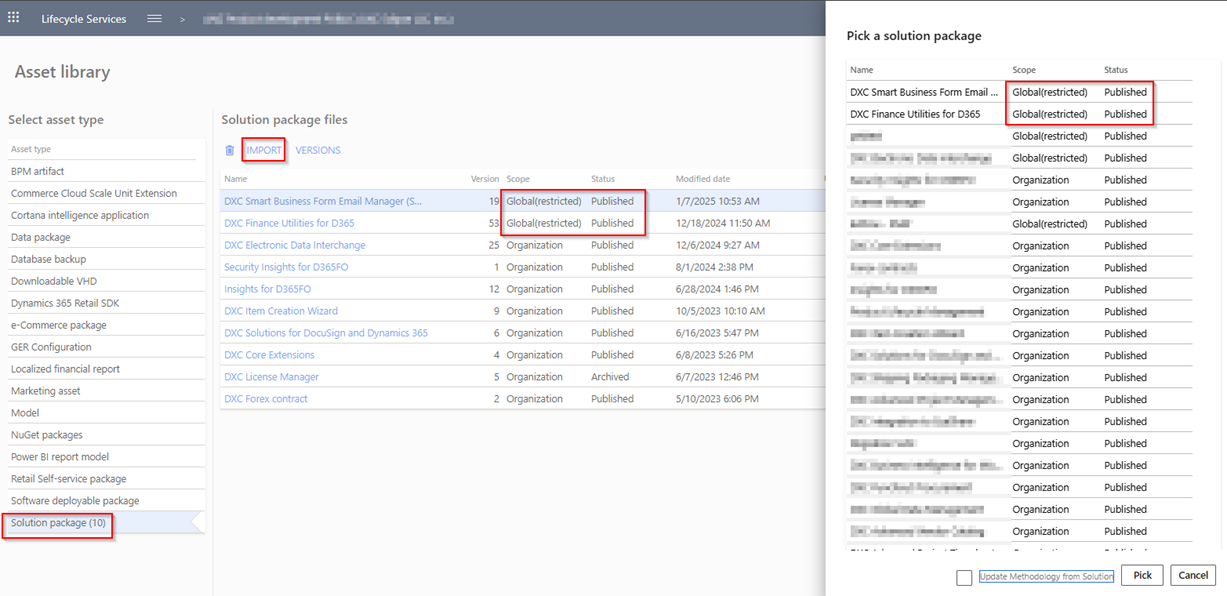
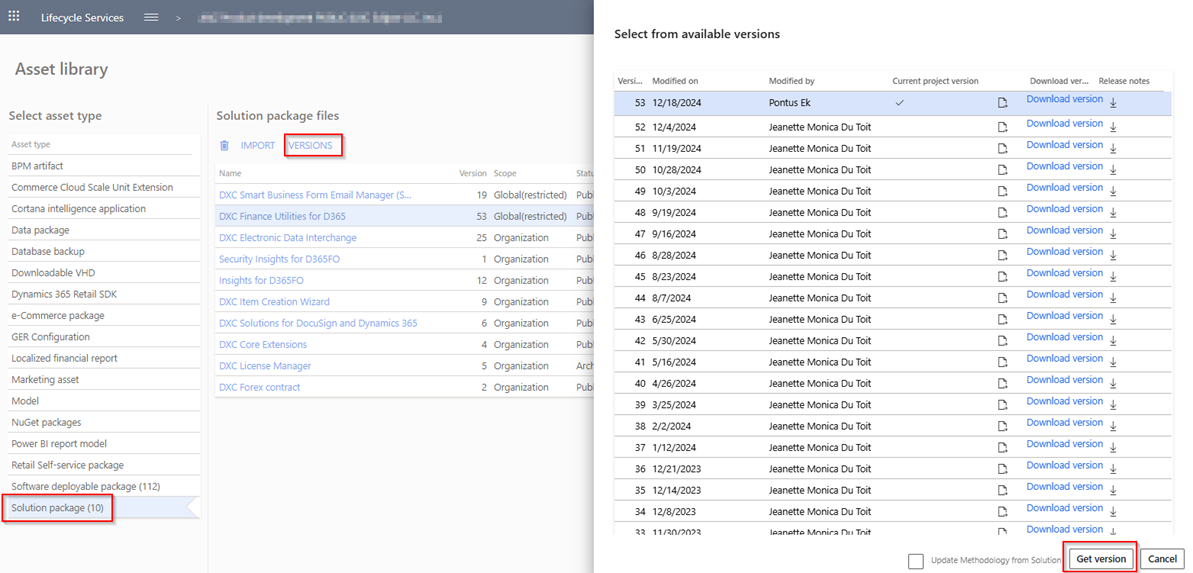
Steps 2 and 3 are required with each upgrade:
Step 2 - Get latest version
Select Solution package. Select the product and click Versions, select the latest version and click Get version.
Repeat for each licensed product.
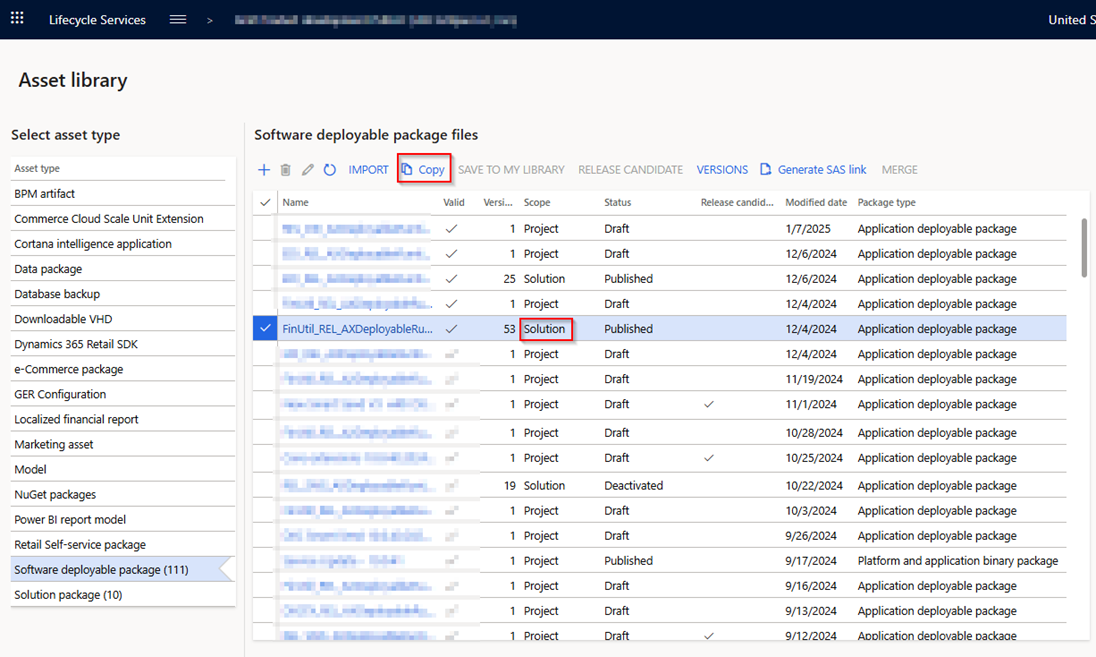
Step 3 - Go to Software deployable package, select the solution (will have same version number) and click Copy.
This step will create the project scope that can be deployed to an environment.
Installation process
To align with MS best practice and to protect our IP the following applies to the release process.
- The license models DXCLicense will only be released as binaries as part of a deployable package.
- We will not provide test models for the products, neither as binary or source code.
- We will only publish the release as a deployable package.
- Model source code can be provided at our discretion. It can be requested for debugging upgrade errors, or if required for extensions.
- If you have been given the source code to our model for extension or debugging purpose, never make modifications directly to our models!
- If you need an extension point, please send an email to ECLANZProductSupport@dxc.com and request it to be implemented.
Depending on the installation history follow one of these guides to install the new release.
Installation without existing installed product
- Apply the deployable package to your environment.
- If you have requested any model for extension or debugging purposes. Install the model source code.
a. Note, once the model source code is compiled it will overwrite the binaries installed when the deployable package was applied.
Installation with existing installed product
If you’re installing the new release in an installation that already has a previous version of the product installed and you’re not using it for debugging or extension. We recommend that you;
- Remove the release product model source code from your source control, if source control is used.
- Apply the deployable package, installing the latest version of the product models as binaries.
- Check in the binaries for the models to source control, if source control is used.
If you’re using our model source code for extension or debugging and would like to continue using it, please do the following to apply the new release with the source code.
- Remove product license model from your source control that is applicable to the release. You’ll find the license model in the deployable package. It will either be called DXCLicense and Sable37License.
- Apply the deployable package to your environment to install the latest binaries. Check in the binaries for the license model that was removed in step 1 to source control. Note, this step will also install the binaries for all the models in the new release.
- Install the product release model source code and check into source control.
If you don’t follow these instructions and continue building your installation deployable package using the license model source code, the installation will continue using the same license model as before applying the release.
Helpful links
Subscribe to notifications
New coming feature
Can be found on each product’s FAQ.
Troubleshooting
Product is installed but functionality not visible
If the product is available in About > Version, check if it has been enabled in Feature management.
If you don’t see the product, click Check for updates and Enable the feature.
Product specific troubleshooting
Can be found on the product’s FAQ
