Getting Started
Release Notes
-
DXC License Manager
-
DXC License
-
React Web App
- 20240605.2
-
React Web App
-
Power App (Deprecated)
| Logo | View |
|---|---|
 |
Customers - View, edit or add new Product Customer details and view, edit or add new Customer products |
| Box in circle (hidden at the bottom left) | Products - View, edit or add new Products |
 |
Expiry(s) report - View expired and due to expire licenses based on filter criteria |
Customer Information shows all information relating to the Customer who has licensed Products by the organization
• Customer Name – Official Name of the customer
• Customer Description – Description or a.k.a name for the customer
• Customer Region - Used to identify the region of the customer head office
• Customer Number – Used to identify the customer in sales/finance systems
Customer Products shows a list of all Products that have been licensed for the selected customer.
The following will either display a green tick (active) or red cross (inactive/expired):
• Active – Where the customer product Subscription End Date (Expiry Date) has not been reached
• Enabled – Customer products Enabled is set to YES
• Site License – Customer product’s Site (Module) License is set to YES. Where this is inactive, No. of Users MUST be completed
The other options available on this form include:
Edit

 - Environment - Add Tenant and Serial number for all the customer’s environments.
 Delete - Delete the Product record for the selected customer. The product can only be deleted if all the environments for the Product has been deleted.
** In order to disable a feature in the applicable environment, the following is required:
Product Information shows all information relating to the Products that need to be license controlled
Expiry(s) report displays the customer product licenses that are due to expire.
Filter options include:
An additional filter option Include over due expiry(s) will display licenses that have already expired.
Azure Application Insights can be used to run analytics to show various error calls or run SQL statements for reporting purposes.
Enquire ECLANZProductSupport@dxc.com for the latest version of the PowerApp. The app comes bundled in a solution with a custom connector.
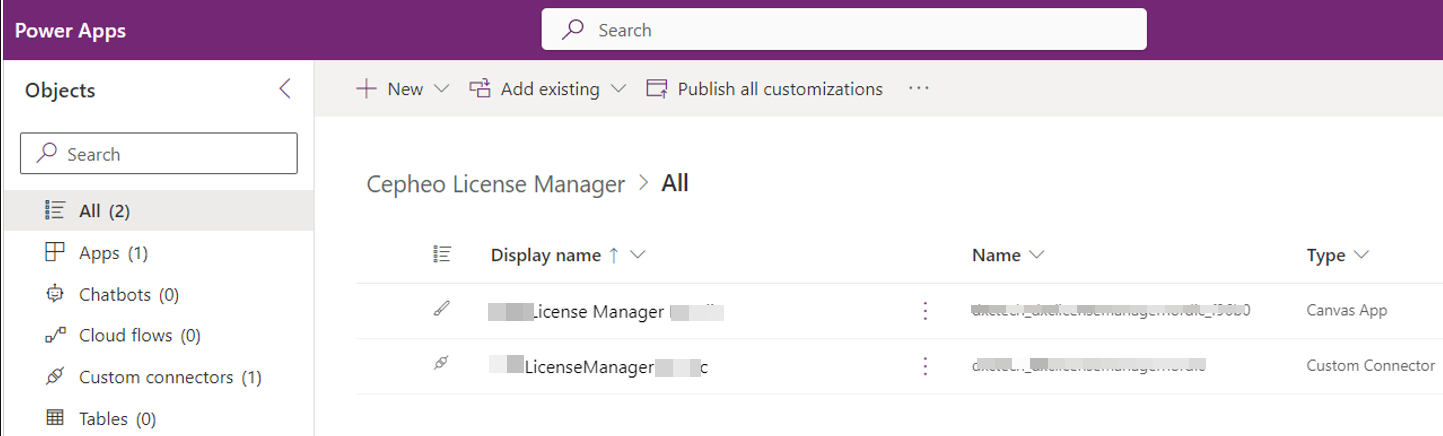
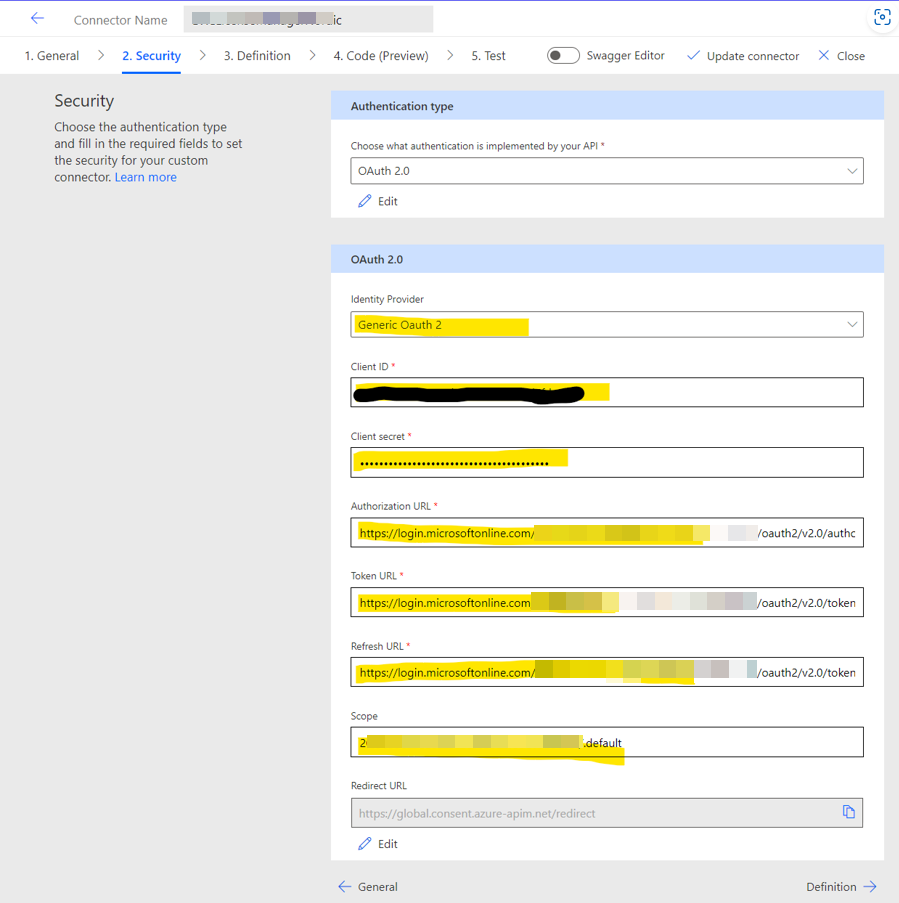
Once the solution has been imported, edit the custom connector security tab to allow authentication with the license manager API. Choose OAuth 2.0 and Generic Oauth 2. Update the connector and create a connection from it. Open the License Manager Nordic app. You will get prompted to sign in. For that to work the user needs to be registered with us, please send an email to our support ECLANZProductSupport@dxc.com if you would like a user to get access.
| Client ID | provided separate |
| Client Secret | provided separate |
| Authorization URL | The authorization URL provided during initial setup |
| Token URL | The token URL provided during initial setup |
| Scope | The scope provided during initial setup |