DXC Agent for bank reconciliation customer payment generation
The DXC Agent for bank reconciliation payment journal generation allows users to automatically create new customer payment journals for relevant bank statement records. Users can also choose to post and match these journals as part of the agent process, or leave the journal unposted for review.
Customer payments could be created by the Agent for the following scenarios:
- Customer remittance pending payments - Customer sends a remittance for their payment settling one or more open invoices, these records can be stored in the agent’s ‘Customer remittance pending payments’. Once the payment is received in the bank reconciliation, the agent can create the customer payment and settle the applicable invoices as per the remittance.
- Bank statement referring to one invoice - Customer refers to one open invoice on the bank statement record, the agent will create the payment and settle the bank statement amount to the one invoice.
- Bank statement referring to no invoice, but contains a different reference that can be used to find customer account - Customer doesn’t send a remittance and no invoice referenced in the bank statement, the customer is identified either by related bank account or agent knowledge sources. Agent creates the customer payment journal, without any invoices settled.
Setup
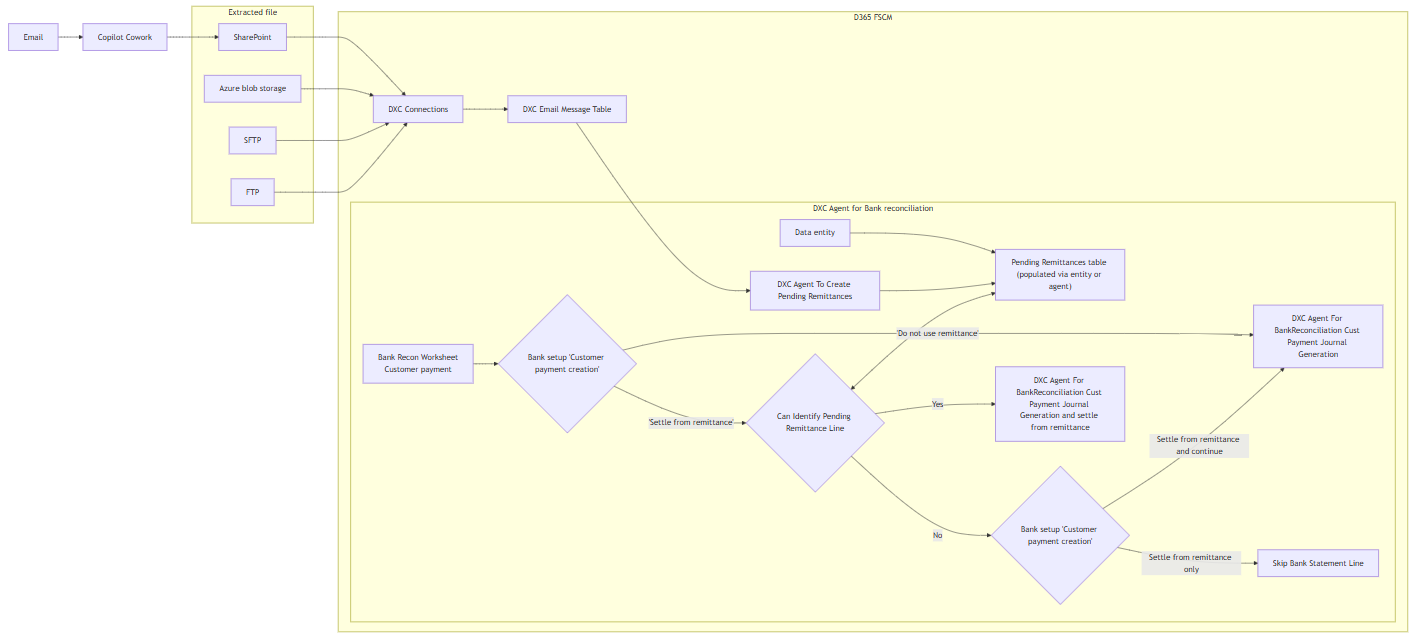
Summary of setup per scenario
Prerequisites
Start by setting up the prerequisite Microsoft Foundry and DXC Agent for finance & supply chain management - user guide
Enable feature
After deployment, find and enable the following features:
- DXC Agent for finance & supply chain management
- DXC Agent for bank reconciliation payment journal generation
All agents
Navigate to Organisation administration > Agents for finance & supply chain management > All agent to setup the applicable agent per legal entity.
When opening the form, it checks for any new agents and self populates from details from code
See below table for information on fields.
Agent for Customer Payment Journal Generation
| Field |
Description |
| Agent name |
DXCAgentForBankReconciliationCustPaymentJournalGeneration |
| Agent description |
Agent for Customer Payment Journal Generation |
| Agent connection details |
Select the agent created in prerequisite Agent connection parameters |
| Agent instructions |
Automatically populated with default Agent instructions |
| Agent output format |
Automatically populated with default output format |
| Enabled |
Set to Yes in order to enable the agent |
| Enable telemetry |
See below for more details |
Agent knowledge sources
The following Agent knowledge sources are automatically created for this agent based on Number sequences assigned for the applicable Accounts receivable parameter fields.
These can be disabled, edited (for example adding more values), etc.
| Name |
Description |
Type |
Example value |
| AccountNum |
Customer account |
Text |
The AccountNum will appear in the following format: AG### where ### represents numeric digits. |
| Invoice |
Invoice |
Text |
The Invoice will appear in the following format: CIV-######## or FTI-######## where # represents numeric digits. |
| PackingSlipId |
Packing slip number |
Text |
The PackingSlipId will appear in the following format: SPK-######## where ######## represents numeric digits. |
| SalesId |
Sales order |
Text |
The SalesId will appear in the following format: SO###### where ###### represents numeric digits. |
Telemetry
Set Enable telemetry to Yes to log and view telemetry for applicable agents.
View the telemetry by using Go to dashboard on the ActionPane. This is only enabled for applicable agents.
Per each run, the following telemetry could be logged per agent. The data is displayed by month:
- Statement count - Number of bank statement records included in runs
- Generated customer payment journal count - Number of customer payments created with no invoice settled
- Generated settled customer payment journal count - Number of customer payments created with invoice settled
- Number of runs - Each time the agent is run, either via import or button in bank reconciliation worksheet
Agent for pending remittance creation
Utilised for creating the Customer remittance pending payments from Agent Email Content.
| Field |
Description |
| Agent name |
DXCAgentForPendingRemittanceCreation |
| Agent description |
Agent for pending remittance creation |
| Agent connection details |
Select the agent created in prerequisite Agent connection parameters |
| Agent instructions |
Automatically populated with default Agent instructions |
| Agent output format |
Automatically populated with default output format |
| Enabled |
Set to Yes in order to enable the agent |
Agent knowledge sources
This agent doesn’t require any Agent knowledge sources.
Telemetry
Set Enable telemetry to Yes to log and view telemetry for applicable agents.
View the telemetry by using Go to dashboard on the ActionPane. This is only enabled for applicable agents.
Per each run, the following telemetry could be logged per agent. The data is displayed by month:
- Generated remittance header count
- Generated remittance lines count
- Number of runs
Customer remittance import
SharePoint
Create a storage location for customer remittance extracted files in SharePoint.
The required folders are:
- Import - File is saved here by Cowork and FSCM DXC connections is setup to import from this folder.
- Archive - Once FSCM DXC connections imports the file to FSCM, the file is moved from import to archive folder by DXC Connections.
- Error - If there is an issue with DXC connections importing the file to FSCM, the file is moved from import to error folder by DXC Connections.
Copilot Cowork
Where the ‘Settle from remittance’ process will be used and the pdf customer remittance is received via email, an option to extract the relevant information from the pdf is to use Copilot Cowork.
See the following example Customer remittance extraction instructions.
Cowork identifies relevant emails, creates a json file with extracted remittance information and saves the extracted file to the applicable import storage location, for example SharePoint.
Once the extracted file is created, Cowork is instructed to move the processed email to a different folder in Outlook.
DXC connections
Navigate to Organisation administration > Setup > DXC connection > DXC connection import to setup the SharePoint connection details.
User guide
Import periodic tasks
Navigate to Organisation administration > Agents for finance & supply chain management > Agent email messages.
Setup a batch with the required recurrence for each of the following:
- Import agent email messages - Select the applicable Import connection to import the extracted file into FSCM. These imported message are available in form Agent email messages with status Waiting.
- Process emails with agent - Select agent DXCAgentForPendingRemittanceCreation to process the imported message and create a pending remittance record in Customer remittance pending payments. The message’s status changes to Processed.
Bank accounts
Navigate to Cash and bank management > Setup > Bank accounts to setup the following:
- Customer payment journal posting - Determines if the created customer payment journal should be posted.
- Yes - The journal will be created, posted and automatically matched to the original bank statement line. Journal button on Matched transactions in the Reconciliation worksheet allows user to easily navigate to these posted customer payment journals.
- No - The journal will be created, but not posted. The message in Action center will list the Journal batch numbers that were created. If the agent is run again, these bank statement records won’t be included again, thus no duplication. Journal button on Matched transactions can’t be used for these as the journal has not been posted by the agent. Once the journals have been reviewed and posted, the matching can be done in the reconciliation either by running agent ‘DXC Agent for bank reconciliation’, reconciliation matching rules or manual matching.
- Customer payment creation - Determines the customer payment creation processes applicable to the bank account.
- Do not use remittance - Agent’s ‘Customer remittance pending payments’ is not in use, and can be skipped.
- Settle from remittance and continue - Agent’s ‘Customer remittance pending payments’ should be used first and thereafter customer payments can also be created using related bank account and agent knowledge sources.
- Settle from remittance only - Agent’s ‘Customer remittance pending payments’ should only be used.
Bank transaction types
Navigate to Cash and bank management > Setup > Bank transaction types and assign the applicable Action to each bank transaction type. Only the Actions that create a new bank transaction applies.
This feature will review the bank statement records where the Action Generate customer payment or Settle customer invoice is mapped.
Example: Bank transaction type value 01 has Action Settle customer invoice assigned.
Transaction code mapping
Navigate to Cash and bank management > Setup > Advanced bank reconciliation setup > Transaction code mapping and ensure all the applicable bank transaction types are mapped for the bank account.
Example: Company bank account has Statement transaction code value 050 mapped to Bank transaction type value 01.
Thus all bank statement records with Bank transaction code value 050 will be reviewed for Create customer payment with agent.
Default description
This feature uses Default description when creating the payment journal line.
- Enable feature Enable default descriptions for advanced bank reconciliation
- Setup Default descriptions for Bank - reconciliation worksheet for each applicable Language or select user.
Cash and bank management parameters
Navigate to Cash and bank management > Setup > Cash and bank management parameters.
- Number sequences - Setup a Pending remittance id number sequence if Customer remittance pending payments are to be used.
Processing
Customer remittance pending payments
Navigate to Cash and bank management > Enquiries and reports > Customer remittance pending payments.
This form contains Customer remittance records that could refer to one or multiple invoices as per the customer’s remittance. It is used in creating customer payments from the bank reconciliation and settling all the invoices as per this form. This only applies to where the Bank account’s Customer payment creation is set to either Settle from remittance and continue or Settle from remittance only.
The records can be created from:
- Process emails with agent: Agent for pending remittance creation process messages in DXCAgentEmailContentTable where DXCAgentId is DXCAgentForPendingRemittanceCreation and MessageStatus is set to Waiting.
- Data entities: Pending remittance header & Pending remittance lines.
- New: Users could use the New buttons to manually create remittance header and lines.
The following fields are available.
| Name |
Description when created with Process emails with agent |
| Pending remittance id |
Unique identifier for the remittance record. Created by using the number sequence Pending remittance id in Cash and bank management parameters. |
| Customer account |
Customer account is determined by the first invoice in the remittance. |
| Payment reference |
Populated from the remittance. |
| Payment date |
Populated from the remittance. |
| Remittance status |
Record is created with Pending status. Once used in bank reconciliation customer payment creation, the status is changed to Processed. Users can also manually change a record’s status to Cancelled to exclude it from processing. |
| Currency |
Populated from the remittance. |
| Amount in transaction currency |
Total payment amount from the remittance. |
Pending remittance lines
| Name |
Description when created with Process emails with agent |
| Invoice |
Populated from the remittance. |
| Currency |
Populated from the remittance. |
| Amount in transaction currency |
Payment amount per invoice from the remittance. |
Line details
Line details are display fields based on the invoice selected in the Pending remittance lines
Bank reconciliation
The DXC Agent for Bank reconciliation in D365 FSCM can be run by:
Automatically with Bank statement import
See setup for prerequisites.
When importing bank statements with Reconcile after import enabled and the prerequisite setup are met the agent will automatically run the licensed agents assigned to the workflow that is either assigned to the Bank account, Cash and bank parameters or the system default.
Manually in Bank reconciliation Worksheet
The agent can be manually run by navigating to Cash and bank management > Bank statement reconciliation > Bank reconciliation and selecting the applicable reconciliation’s Worksheet.
Where the agent is enabled, the Create customer payment with agent button will be enabled in the Unmatched transactions tab.
- To run the agent for all unmatched bank statement transactions, no need to select any records only click Create customer payment with agent.
- To run the agent for manually selected records, select the applicable unmatched bank statement transactions and click Create customer payment with agent
Results - Matched transactions
Where the Bank account’s Customer payment journal posting was set to Yes, the Customer payment journals are posted and automatically matched to the original bank statement record.
The following sections only applies to above set to Yes.
Journals
Button Journals will be enabled and allow the user to navigate to the posted journal.
Cancel payment
Button Cancel payment can be used to create an “opposite”/reversing transaction and move the posted bank document to unmatched.
Note: Ensure Bank transaction type setup against field NSF in Cash and bank management parameters is the same as your Bank transaction type in your Method of payment. If they differ, standard matching doesn’t allow these two bank document records to matched against each other, and throws the following error:
“The criteria to reconcile have not been met. You can reconcile either a single canceled check or two transactions. To reconcile two transactions, the document type must be Other, and the documents must have the same bank account, transaction type, payment reference and have opposite amounts.
Customer remittance
Button Customer remittance is enabled for customer payments created using Customer remittance pending payments. This opens the Customer remittance pending payments page, for the selected Remittance record that was used in the payment creation.
Field Pending remittance id is also populated on the bank statement record with the applicable remittance id.
Matching rule
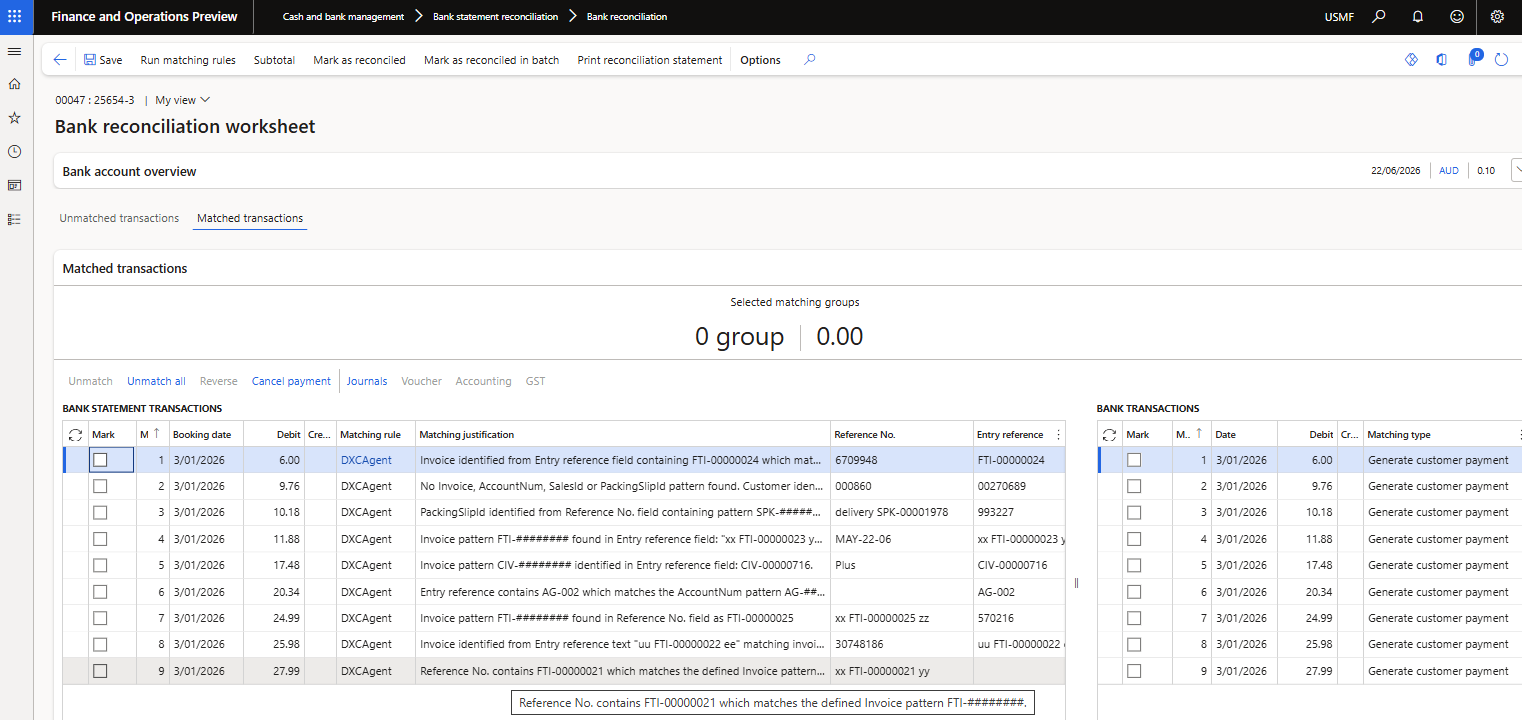
The transactions that have been matched by the Agent can easily be viewed in Matched transactions as these are flagged in Matching rule with DXCAgent.
Note: Reconciliation matching rule DXCAgent is automatically created by the product, but only the name is used for flagging the applicable Matched transactions.
Matching justication
To view Agent reasoning, see Matching justification for more information.
Matching type
The Matching type will be Generate customer payment.
Analytics
The following agent numbers are available to view on each bank reconciliation and the General tab:
- Bank statements matched by agent - Count of bank statements matched by agent for the bank reconciliation
- Percentage of bank statements matched by agent - Percentage of bank statements matched by agent for the bank reconciliation
- Customer payments created by agent - Count of customer payments created by agent for the bank reconciliation
FAQ
- Customer refers to an old invoice in the bank statement that has no remaining balance - The Agent will error for this record with ‘Invoice % does not exist’, and rollback the journal created. The bank statement record will remain unmatched.
