
Product Information
- Introduction
-
Bank reconciliation agents
- Reporting
- Governance
- Security configuration
- FAQ
Release Notes
- 10.0.47.20260806
- Installation process
The DXC Agent for bank reconciliation payment journal generation allows users to automatically create new vendor payment journals for relevant bank statement records. Users can also choose to post and match these journals as part of the agent process, or leave the journal unposted for review.
Start by setting up the prerequisite Microsoft Foundry and DXC Agent for finance & supply chain management - user guide
After deployment, find and enable the following features:
Navigate to Organisation administration > Agents for finance & supply chain management > All agent to setup the applicable agent per legal entity.
When opening the form, it checks for any new agents and self populates from details from code
See below table for information on fields.
| Field | Description |
|---|---|
| Agent name | DXCAgentForBankReconciliationVendPaymentJournalGeneration |
| Agent description | Agent for Vendor Payment Journal Generation |
| Agent connection details | Select the agent created in prerequisite Agent connection parameters |
| Agent instructions | Automatically populated with default Agent instructions |
| Agent output format | Automatically populated with default output format |
| Enabled | Set to Yes in order to enable the agent |
| Enable telemetry | See below for more details |
Set Enable telemetry to Yes to log and view telemetry for applicable agents.
View the telemetry by using Go to dashboard on the ActionPane. This is only enabled for applicable agents.
Per each run, the following telemetry could be logged per agent. The data is displayed by month:
Agent knowledge sources are available to select which table and fields the agent needs to use to find values in the bank statement that will help determine the Vendor account.
Fields:
Examples:
| Type | Table | Table name | Field ID | Field name | Value |
|---|---|---|---|---|---|
| Field | VendTable | Vendors | AccountNum | Vendor account | The AccountNum will appear in the following format: C### where # represents numeric digits. |
| Field | VendBankAccount | Vendor bank accounts | SWIFTNo | SWIFT code | The SWIFTNo will appear in the following format: ANZBAU3M##### where # represents numeric digits. |
| Field | VendInvoiceJour | Vendor invoice journal | InvoiceId | Invoice | The InvoiceId will appear in the following format: I####### or IN####### or POI######## or ######-# where # represents numeric digits. |
Navigate to Cash and bank management > Setup > Bank accounts to setup the following:
Navigate to Cash and bank management > Setup > Bank transaction types and assign the applicable Action to each bank transaction type. Only the Actions that create a new bank transaction applies.
This feature will review the bank statement records where the Action Generate vendor payment is mapped.
Example: Bank transaction type value 12 has Action Generate vendor payment assigned.
Navigate to Cash and bank management > Setup > Advanced bank reconciliation setup > Transaction code mapping and ensure all the applicable bank transaction types are mapped for the bank account.
Example: Company bank account has Statement transaction code value 000 mapped to Bank transaction type value 12.
Thus all bank statement records with Bank transaction code value 000 will be reviewed against Agent knowledge sources. Where the D365 Vendor account can be determined, the vendor payment journal will be created.
This feature uses Default description when creating the payment journal line.
The DXC Agent for Bank reconciliation in D365 FSCM can be run by:
See setup for prerequisites.
When importing bank statements with Reconcile after import enabled and the prerequisite setup are met the agent will automatically run the licensed agents assigned to the workflow that is either assigned to the Bank account, Cash and bank parameters or the system default.
The agent can be manually run by navigating to Cash and bank management > Bank statement reconciliation > Bank reconciliation and selecting the applicable reconciliation’s Worksheet.
Where the agent is enabled, the Create vendor payment with agent button will be enabled in the Unmatched transactions tab.
Where the Bank account’s Vendor payment journal posting was set to Yes, the Vendor payment journals are posted and automatically matched to the original bank statement record. The following sections only applies to above set to Yes.
Button Journals will be enabled and allow the user to navigate to the posted journal.
Button Cancel payment can be used to create an “opposite”/reversing transaction and move the posted bank document to unmatched.
Note: Ensure Bank transaction type setup against field NSF in Cash and bank management parameters is the same as your Bank transaction type in your Method of payment. If they differ, standard matching doesn’t allow these two bank document records to matched against each other, and throws the following error: “The criteria to reconcile have not been met. You can reconcile either a single canceled check or two transactions. To reconcile two transactions, the document type must be Other, and the documents must have the same bank account, transaction type, payment reference and have opposite amounts.
The transactions that have been matched by the Agent can easily be viewed in Matched transactions as these are flagged in Matching rule with DXCAgent.
Note: Reconciliation matching rule DXCAgent is automatically created by the product, but only the name is used for flagging the applicable Matched transactions.
To view Agent reasoning, see Matching justification for more information.
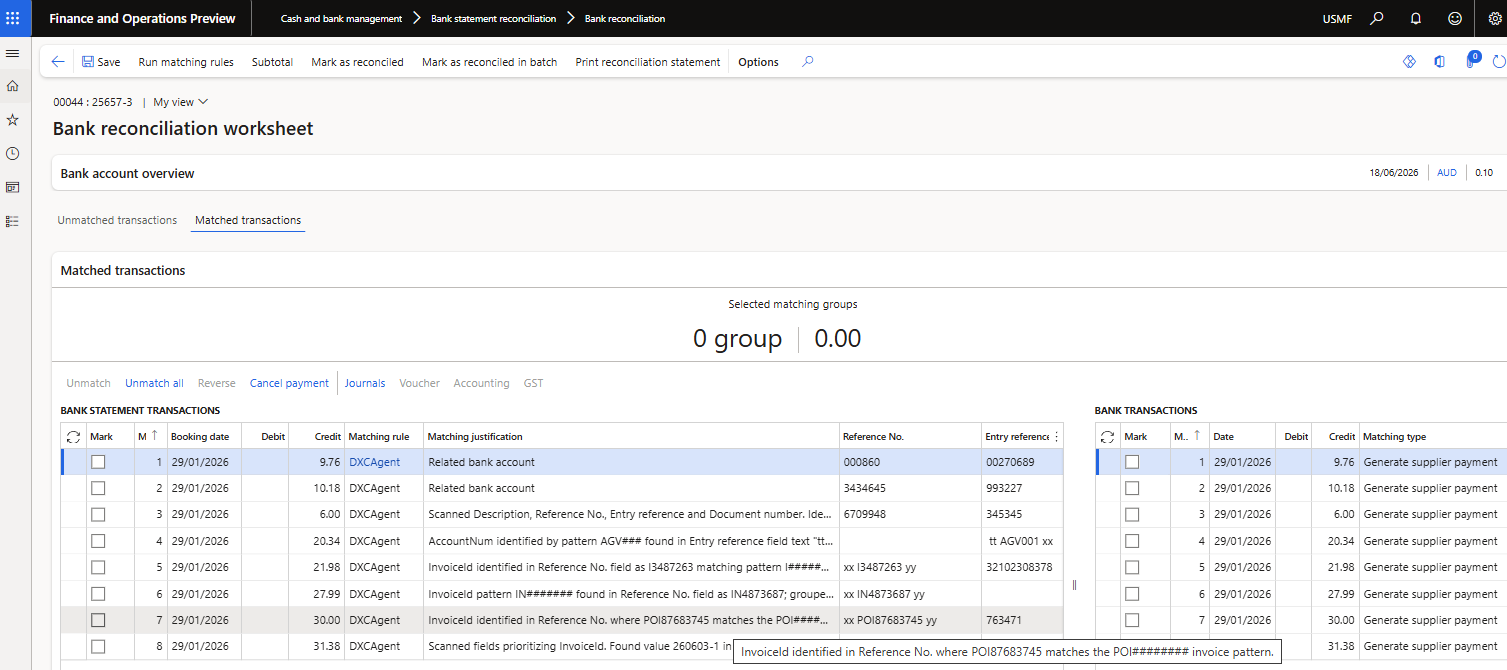
The Matching type will be Generate vendor payment.
The following agent numbers are available to view on each bank reconciliation and the General tab: