
In this article
Product Information
- Introduction
-
Bank reconciliation agents
- Reporting
- Governance
- Security configuration
- FAQ
Release Notes
- 10.0.47.20260806
- Installation process
The DXC Agent for Bank reconciliation allows users to match bank statement transactions with bank documents, and bank documents to bank documents.
Start by setting up the prerequisite Microsoft Foundry and DXC Agent for finance & supply chain management - user guide
After deployment, find and enable the following features:
Navigate to Organisation administration > Agents for finance & supply chain management > All agent to setup the DXC Agent for bank reconciliation per legal entity.
When opening the form, it checks for any new agents and self populates from details from code
See below table for information on fields.
| Field | Description |
|---|---|
| Agent name | DXCAgentForBankReconciliation & DXCAgentForBankReconciliationValidation |
| Agent description | Agent for bank reconciliation & Agent for Bank Reconciliation Validation |
| Agent connection details | Select the agent created in prerequisite Agent connection parameters |
| Agent instructions | Automatically populated with default agent instructions |
| Agent output format | Automatically populated with default output format |
| Enabled | Set to Yes in order to enable the agent |
| Enable telemetry | See below for more details |
Set Enable telemetry to Yes to log and view telemetry for applicable agents.
View the telemetry by using Go to dashboard on the ActionPane. This is only enabled for applicable agents.
Per each run, the following telemetry could be logged per agent. The data is displayed by month:
Where you want the agent to automatically run when importing the bank statement, navigate to Cash and bank management > Bank statement reconciliation > Bank accounts.
Note: The agent will only automatically run where: Bank account’s Reconcile after import is Yes, and Run reconciliation agent is Yes, and Import bank statement Reconcile after import is Yes
Provides the ability to run multiple licensed agents in a specific order. For example where you want the agent to match and thereafter create new transactions.
See framework agent workflow guide for steps on creating a new workflow.
If you want to override the default workflow or agent, assign a workflow or agent in:
Navigate to Cash and bank management > Setup > Cash and bank management parameters.
The following parameters on the Bank reconciliation tab influences matching by the agent:
The DXC Agent for Bank reconciliation in D365 FSCM can be run by:
See setup for prerequisites.
When importing bank statements with Reconcile after import enabled and the prerequisite setup are met the agent will automatically run and match the transactions in applicable Bank reconciliations.
The agent can be manually run by navigating to Cash and bank management > Bank statement reconciliation > Bank reconciliation and selecting the applicable reconciliation’s Worksheet.
Where the agent is enabled, the following buttons will be enabled in the Unmatched transactions tab:
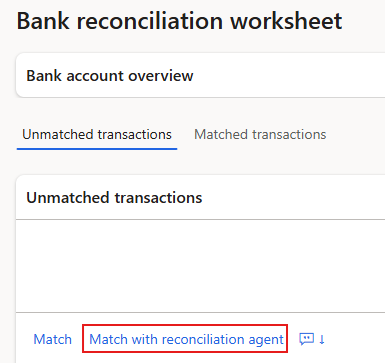
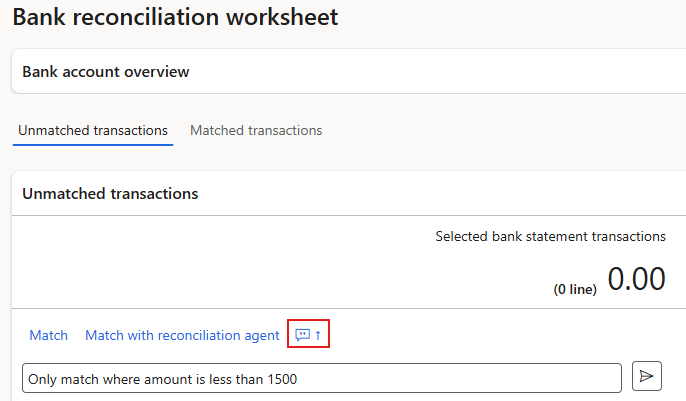
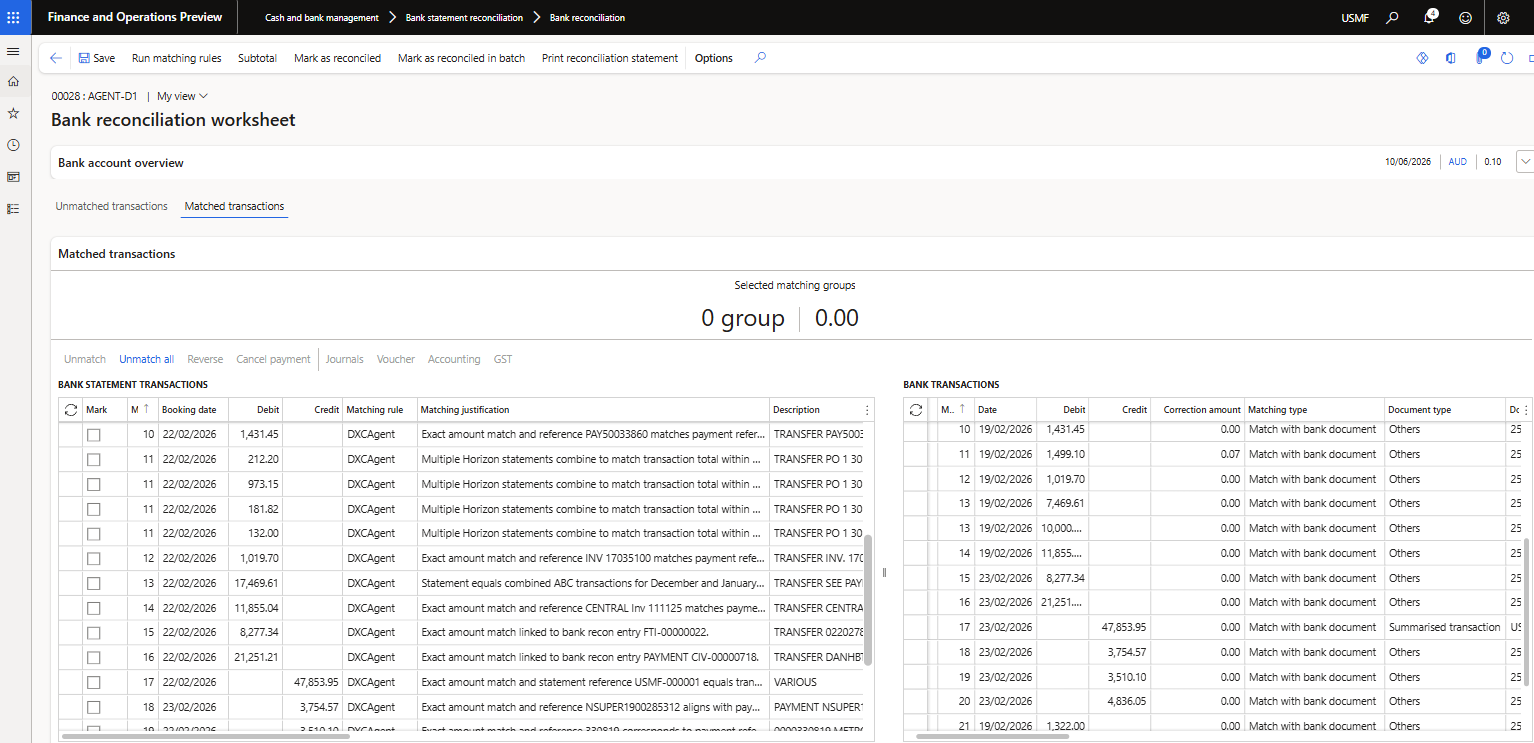
The transactions that have been matched by the Agent can easily be viewed in Matched transactions as these are flagged in Matching rule with DXCAgent.
Note: Reconciliation matching rule DXCAgent is automatically created by the product, but only the name is used for flagging the applicable Matched transactions.
To view Agent reasoning, see Matching justification for more information.
The following agent numbers are available to view on each bank reconciliation and the General tab: