Your Funding Position — All 11 Steps
← Go step by step
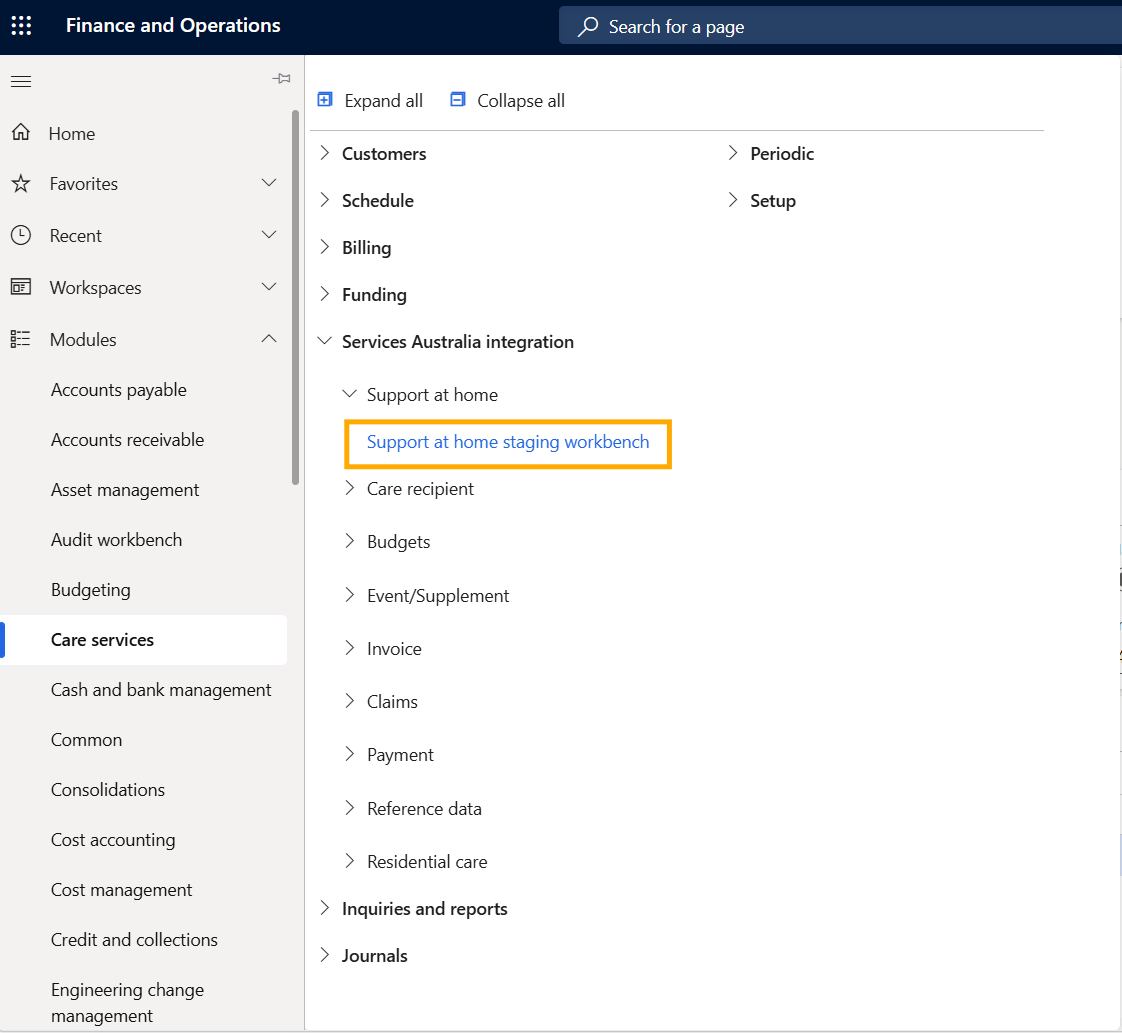
Step 1 — Navigate to the staging workbench
Go to Care Services → Services Australia integration → Support at home → Support at home staging workbench.
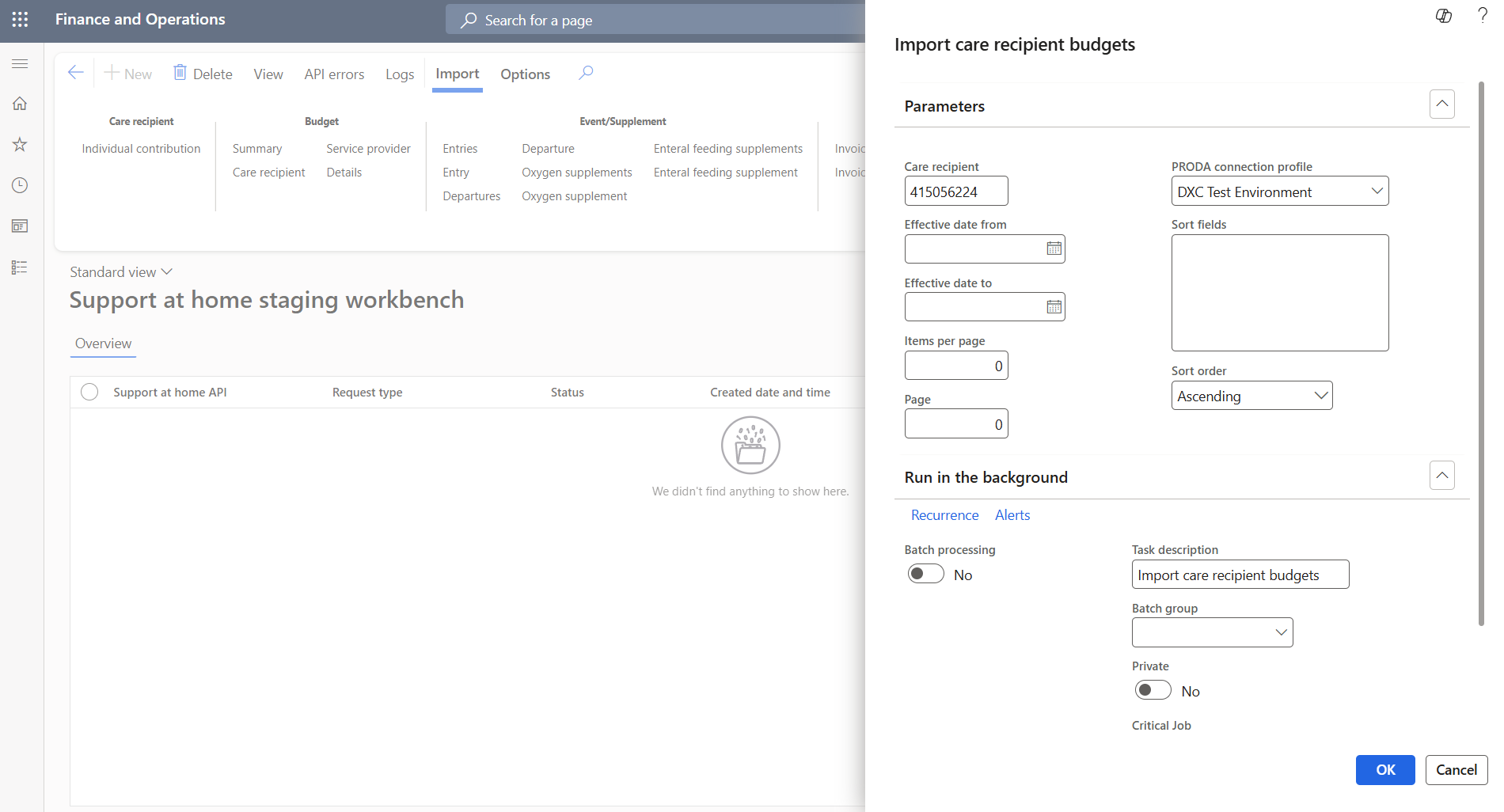
Step 2 — Import the care recipient’s budget
Click Import → Budget → Care recipient. Enter the care recipient ID and PRODA profile. Hit OK.
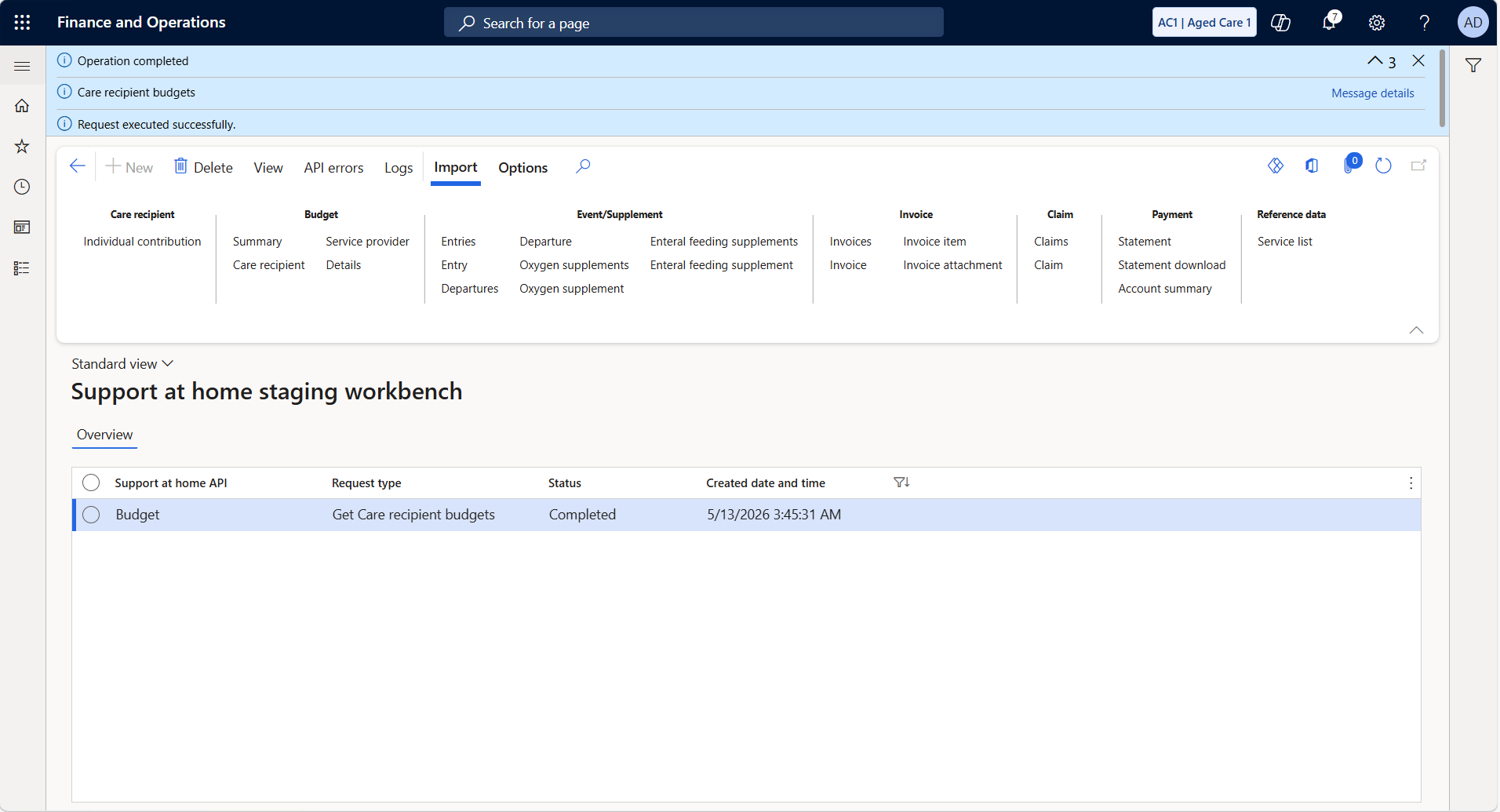
Step 3 — Import completed
The workbench shows Budget / Get Care recipient budgets / Completed. Click the row to open the result.
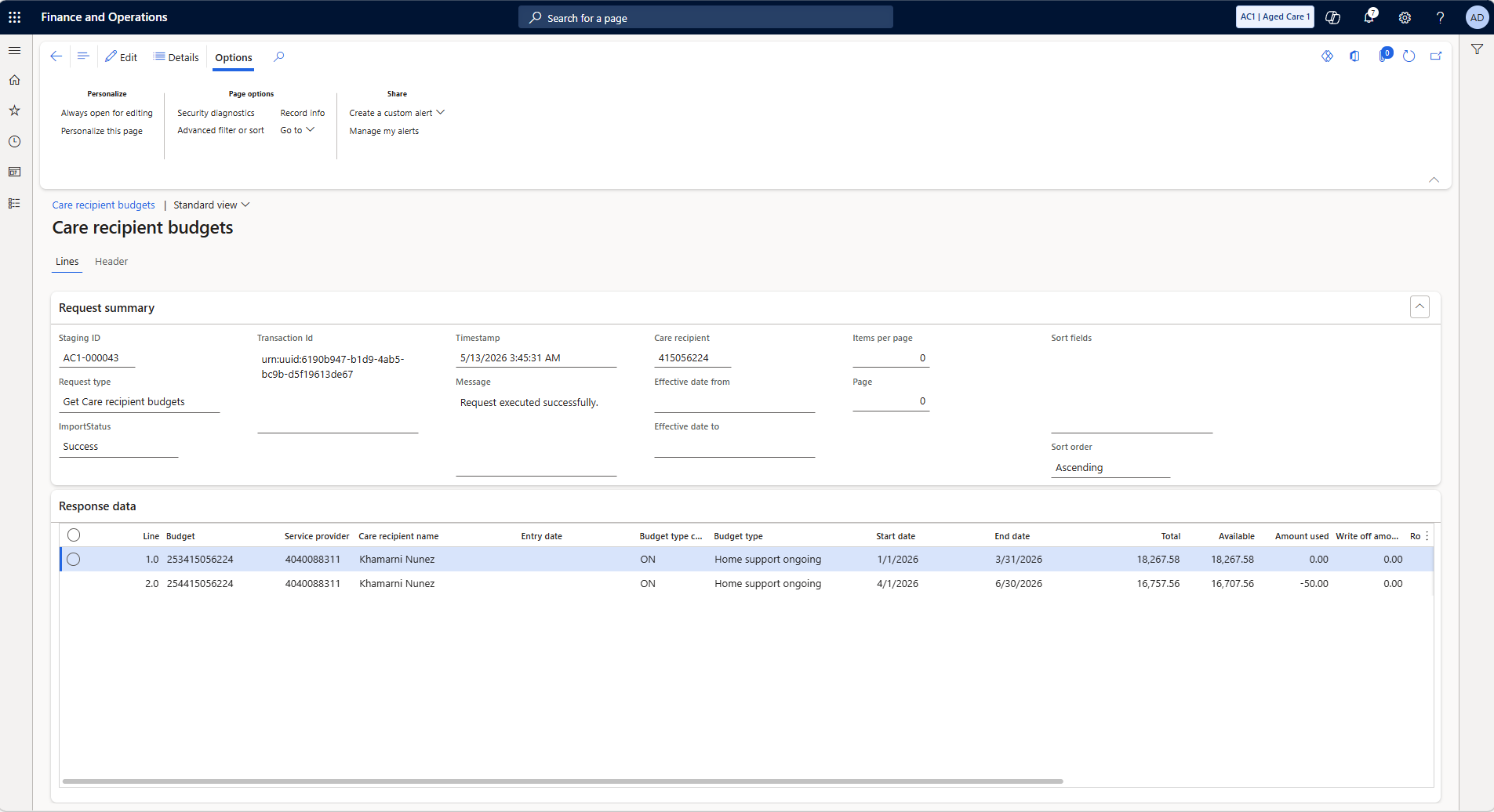
Step 4 — Budget periods returned
Two periods returned. Q2 (Apr–Jun 2026) is open — $16,707.56 of $16,757.56 available. Take note of the Q2 budget ID.
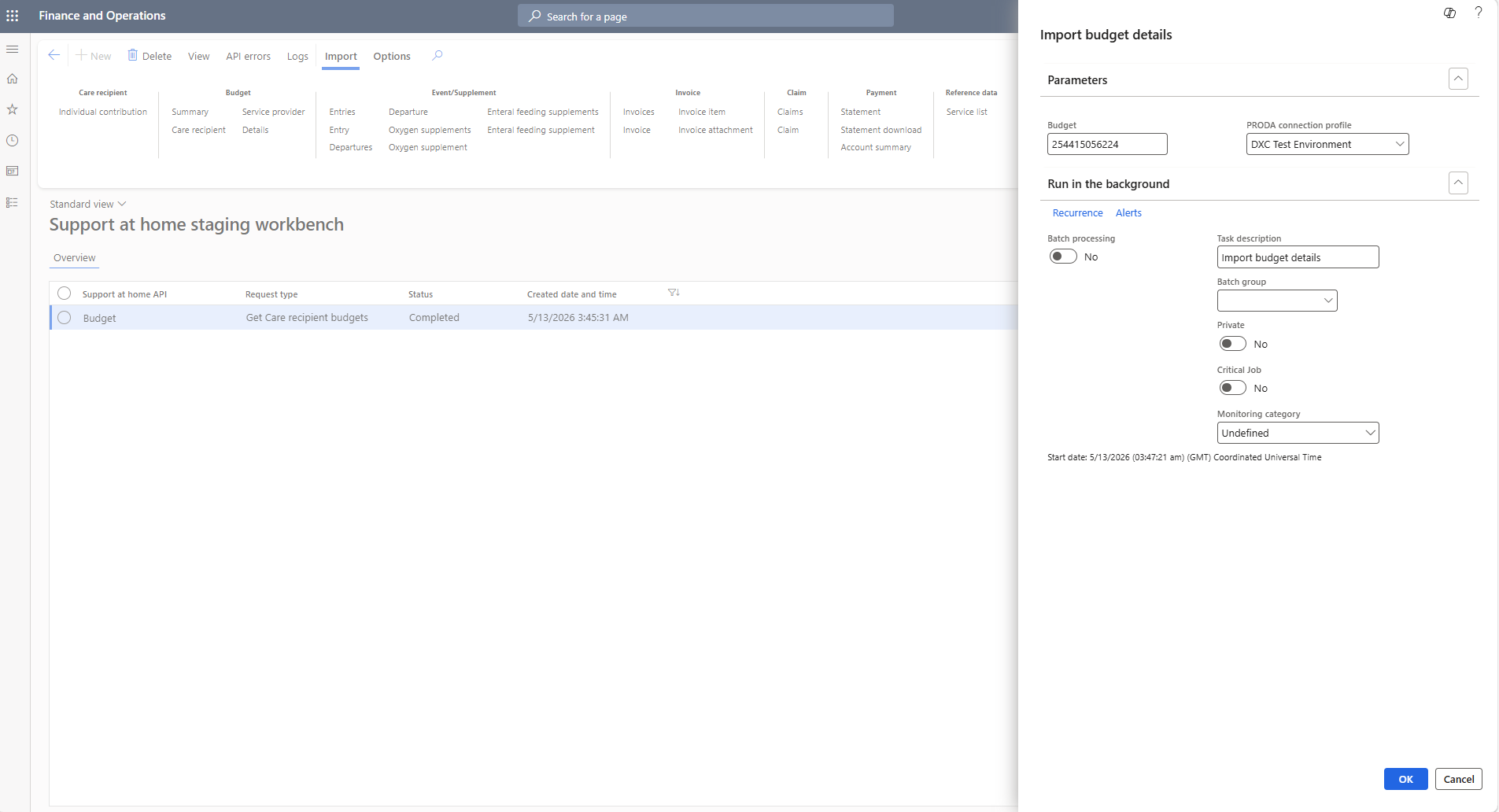
Step 5 — Import the budget details
Click Import → Budget → Details. Enter the Q2 budget ID (254415056224). Hit OK.
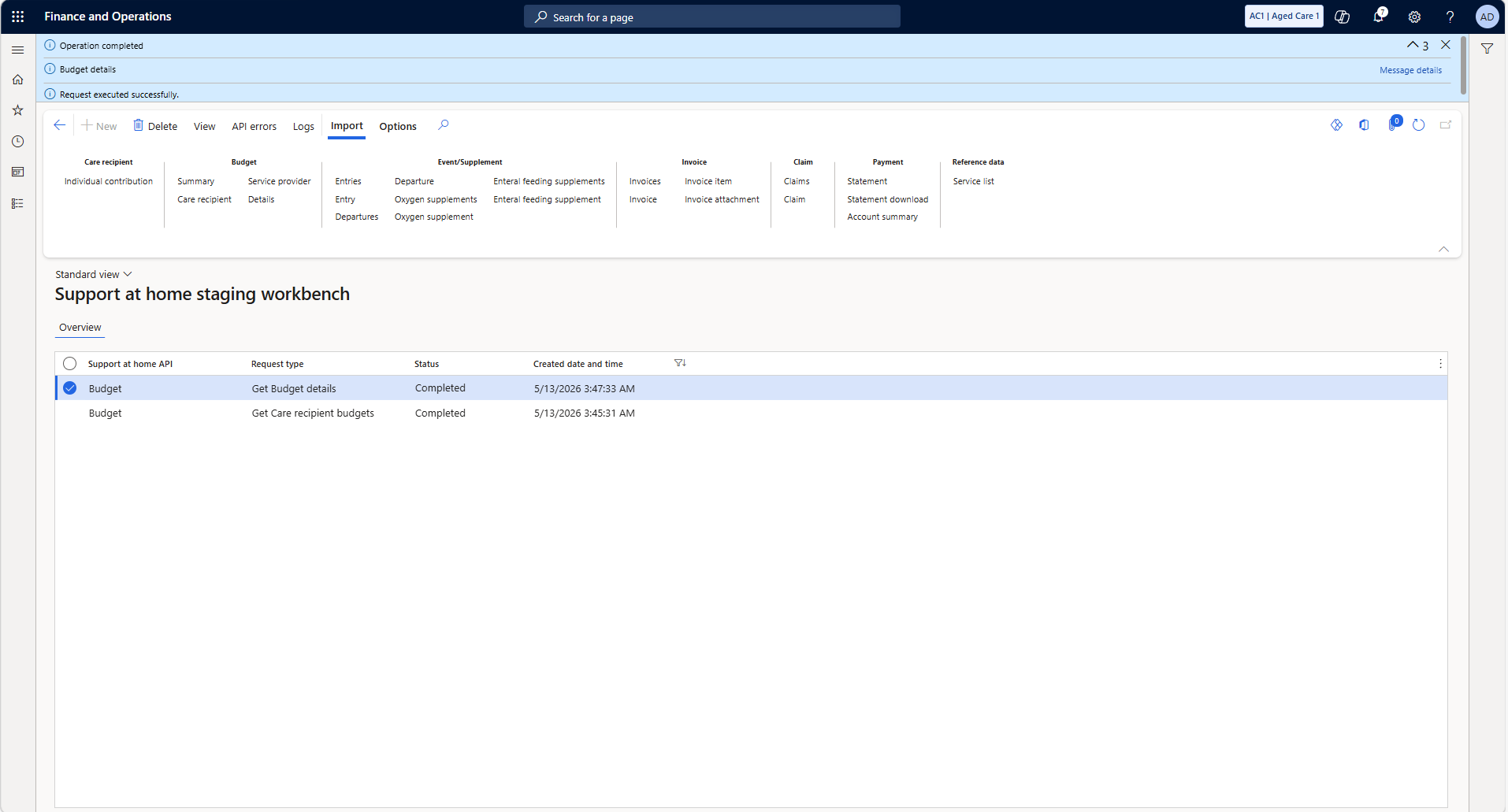
Step 6 — Budget details completed
Two rows in the workbench. Click the top row to open the budget details.
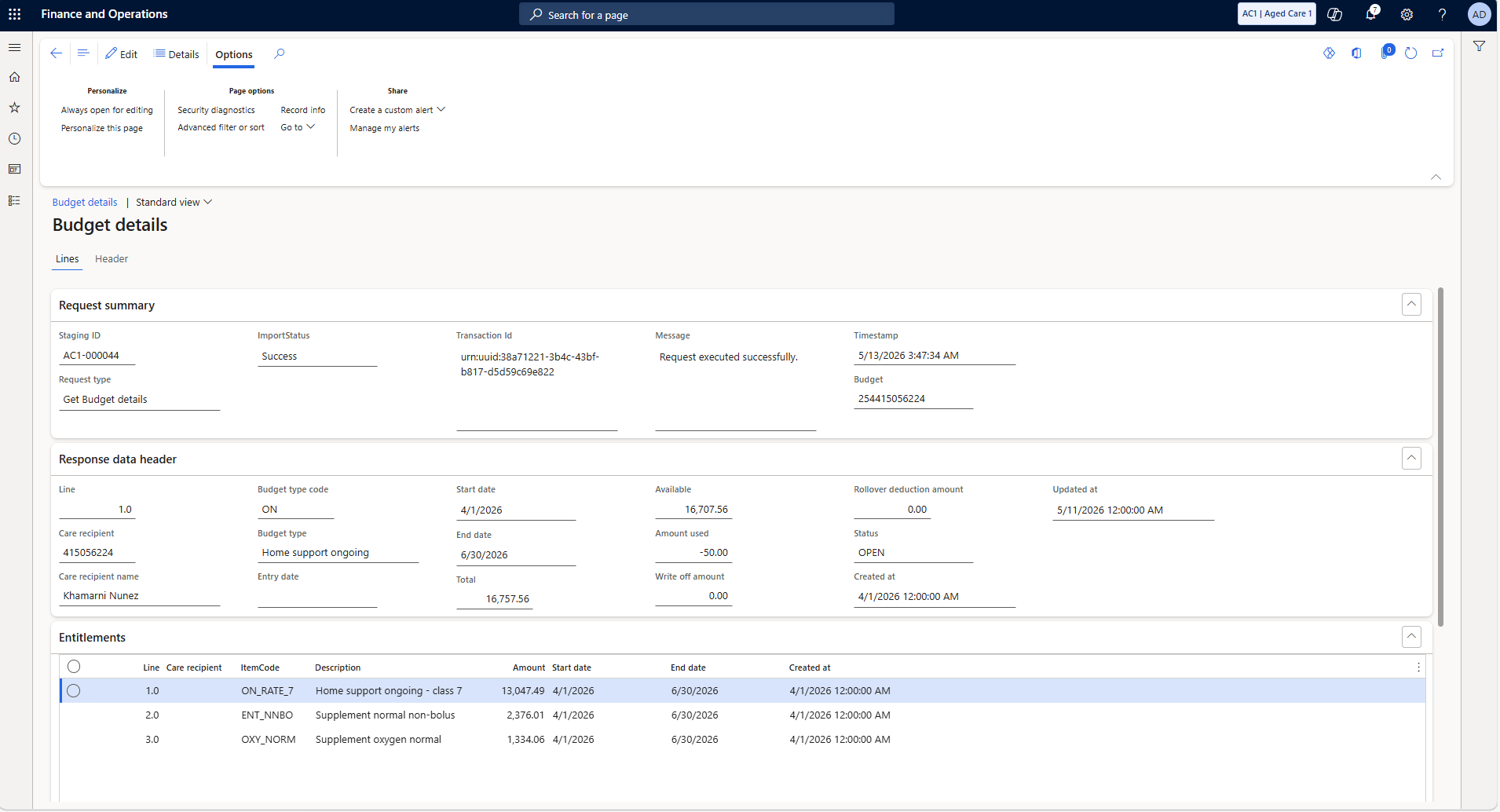
Step 7 — Your funding envelope
Q2 2026, Status OPEN. Total $16,757.56 split across three entitlements: core care (ON_RATE_7), enteral feeding (ENT_NNBO), oxygen supplement (OXY_NORM).
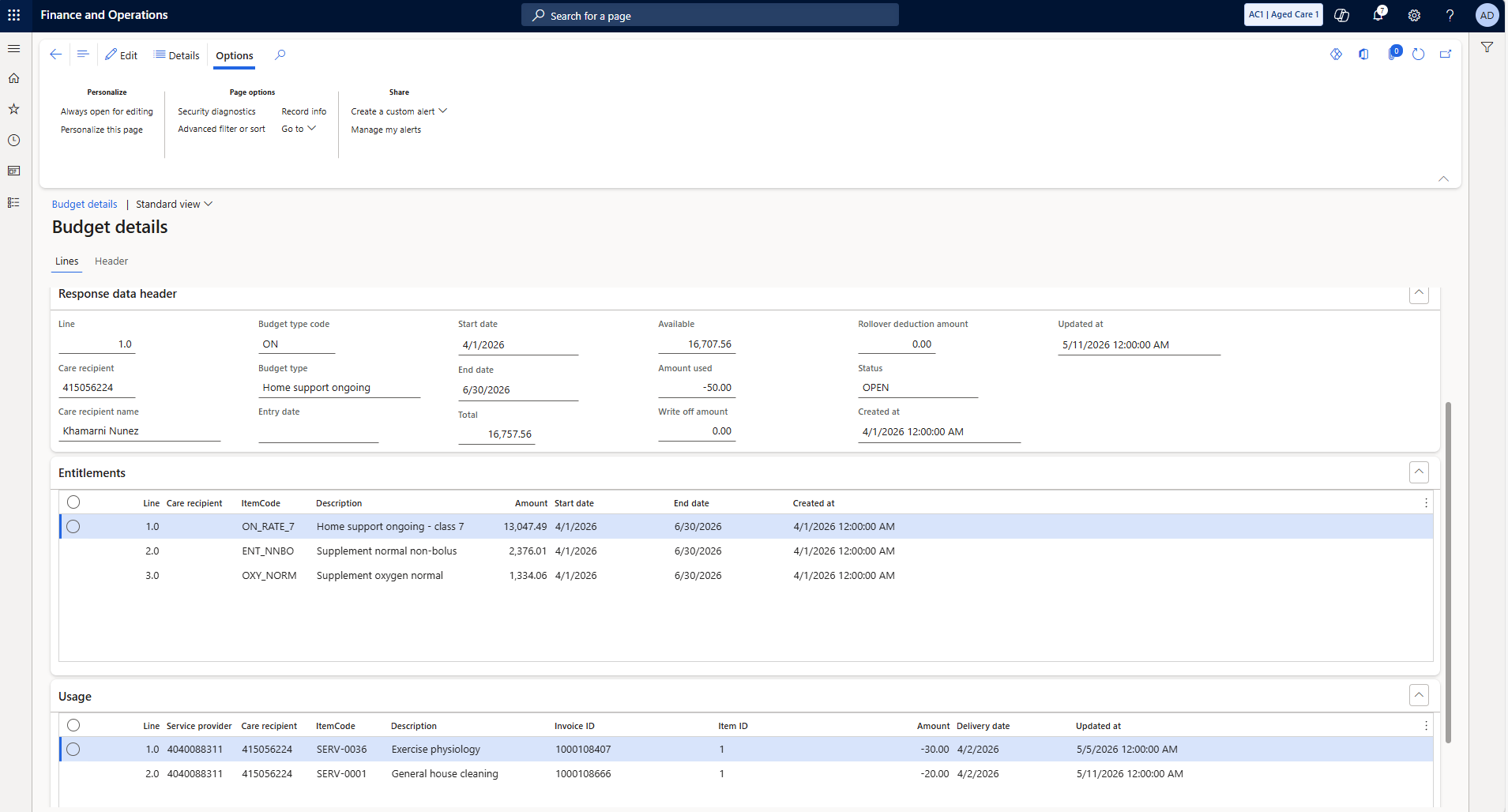
Step 8 — What’s already been drawn
Usage lines show two invoices totalling $50 — matching the -$50.00 in the header exactly.
Step 9 — Import the account summary
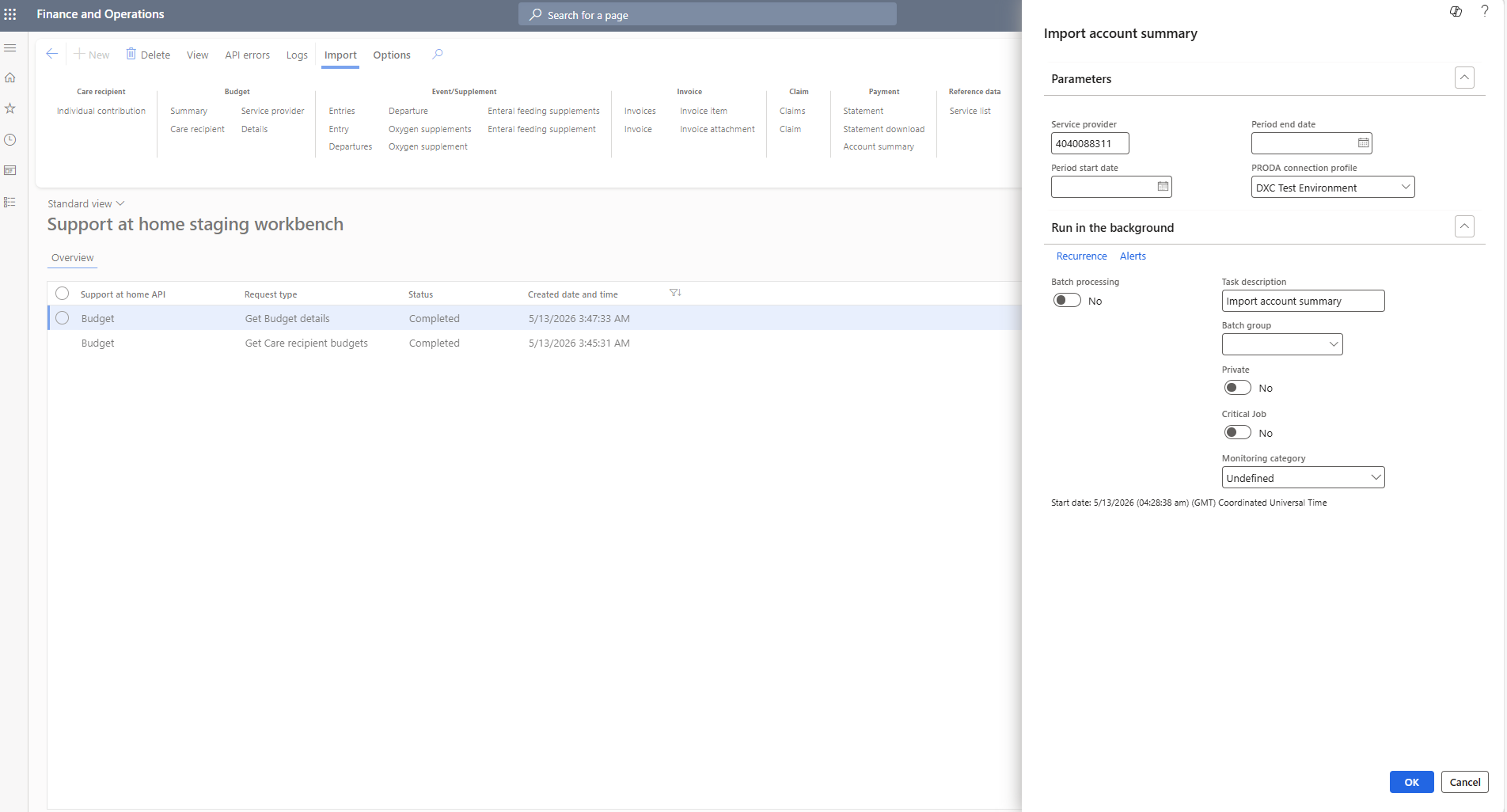
Click Import → Payment → Account summary. Enter the provider number (4040088311). Hit OK.
Step 10 — Account summary completed
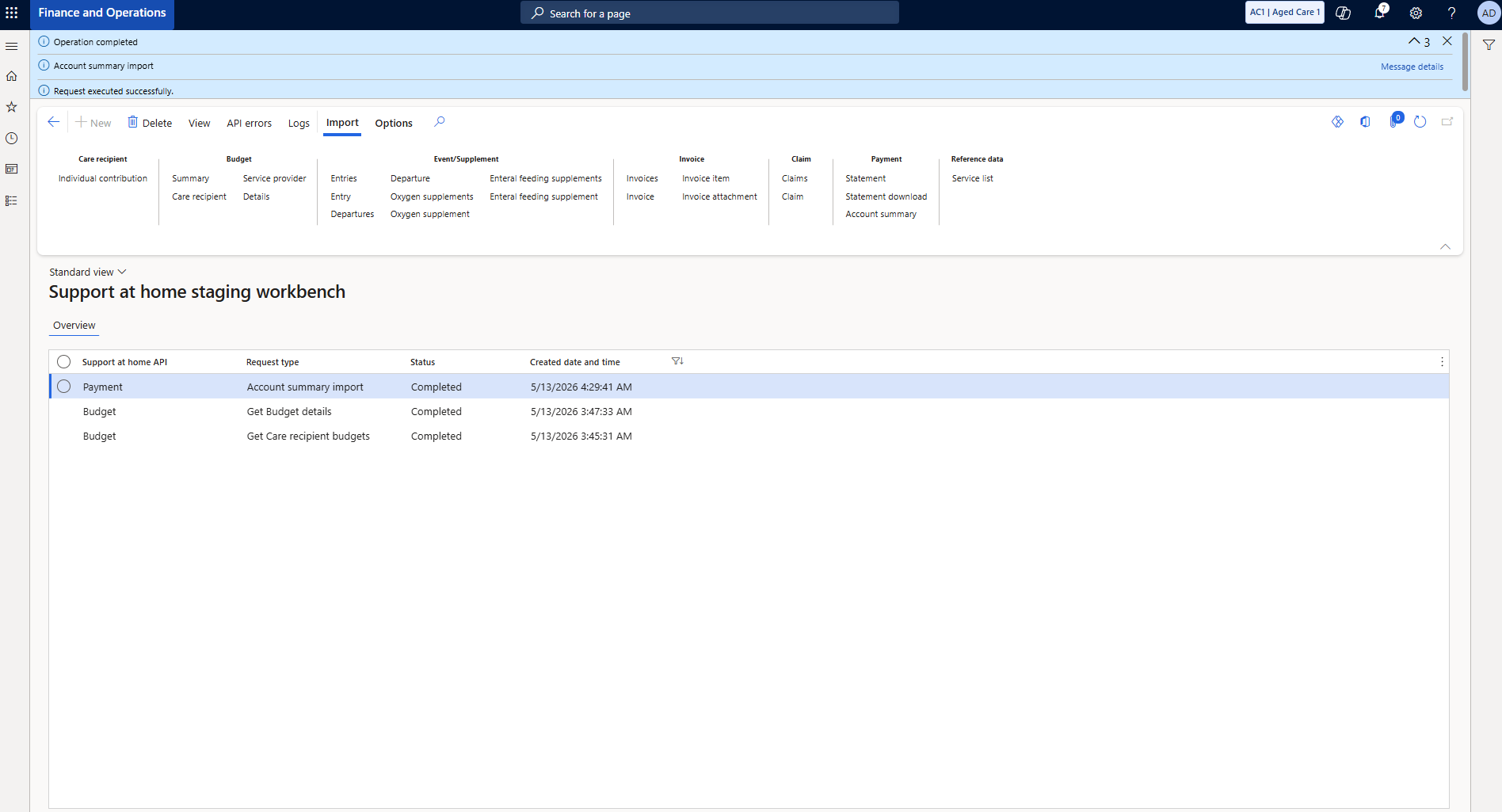
Three rows in the workbench. Click the top row to see the provider’s financial position.
Step 11 — Your account position
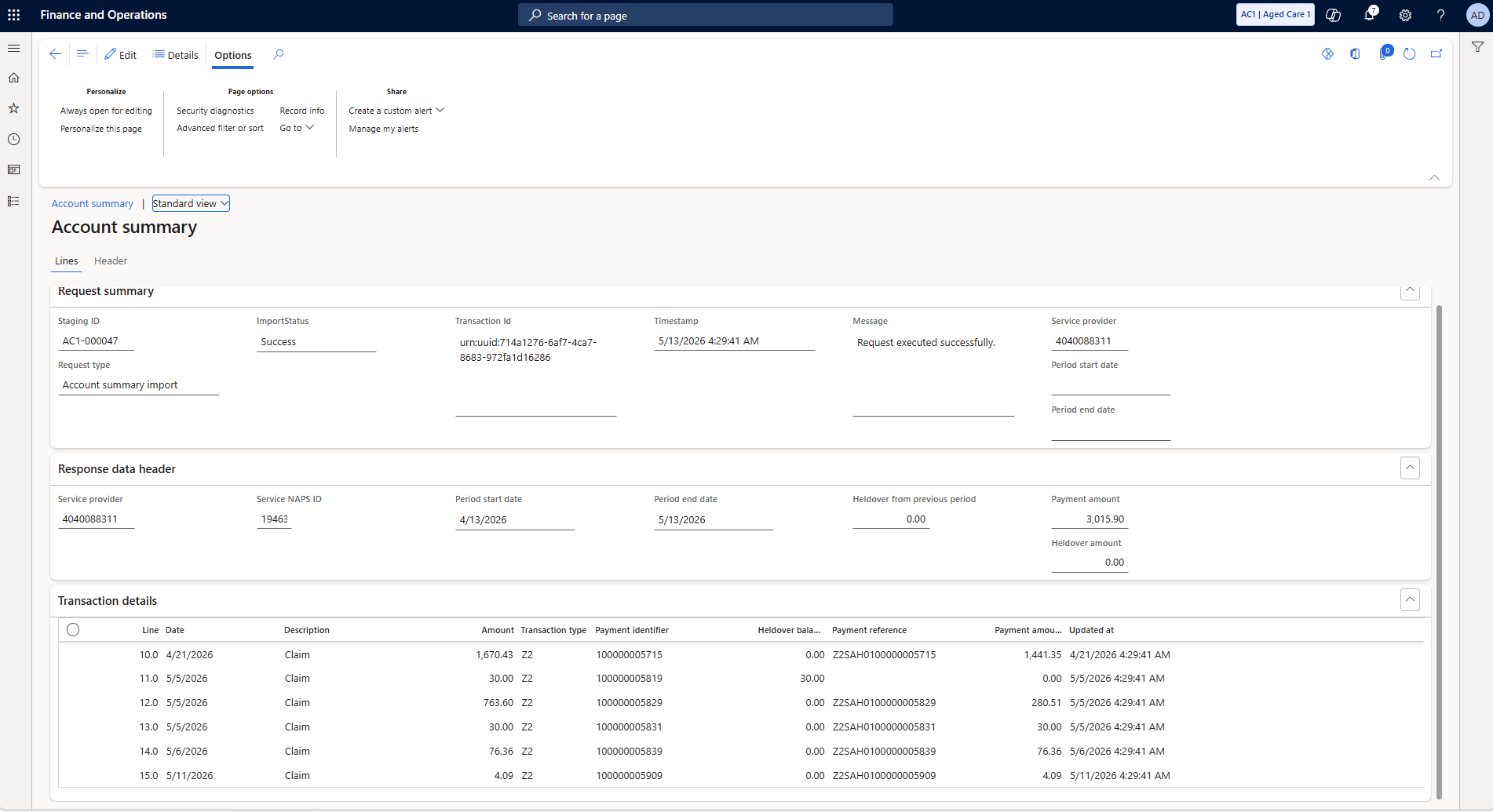
Payment amount $3,015.90 for the period. Transaction details list every processed claim with payment references.
You know where you stand. Time to raise the funding claim.
Creating the Funding Claim →
