Bed transfer
Transfer within the same facility (service)
Navigate to: Care services > All customers > Care services > Service entries
- Open the service entry the resident is departing from.
- Navigate to the Transfer section.
- Click <Add>
- Select the new bed from the ‘Transfer to’ drop-down menu.
- Populate the ‘Transfer date’
- Populate a ‘Transfer description’
- Click <OK>
- The transfer line will be generated.
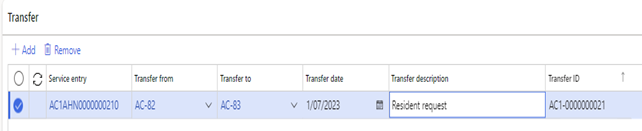
Transfer
- If required, process a refund if the new bed price is less than the original one or another invoice if the bed price is more than the original (subject to the reason for the bed move)
- Go to Invoice > Accommodation Payment
- Populate an <End date> on the line.
- Click <Save> to save the details.
- Click on <Add line> to add a new line.
- Populate Effective date and new ‘Agreed amount’ and ‘Agreed lumpsum’.
- Process the difference in bed price:
- Go to Care services> Billing > Billing journal.
- Create a new accommodation payment lump sum invoice journal.
- Populate the date and select the client account.
- Select the billing account name for the accommodation payment refund
- Select the Service code.
- Select the Billing Code for the partial refund (as specified in care services parameters > journals > Partial refund billing code) OR the lumpsum invoice billing code for the invoice
- Populate the start and end dates.
- Add the refund amount credit in the Rate (e.g., -100 000) or additional invoice amount in debit
- Validate and post the journal.
- Refund via All Customers> Collect> Client refund proposal:
- Select ‘Partial refund’ in the Refund type and click
- Select the credit invoice by ticking the ‘Mark’ check box
- Click on
- Go to Journals> Billing Journal and select the automatically created journal
- Validate and post the journal.
- The refund amount has now been transferred to the resident vendor account
Transfer to another facility (service)
Navigate to: Care services > All customers > Care services > Service entries
- Open the service entry the resident is departing from.
- Populate <Departure Date>
- Populate <Departure Notice Date>
- Select the Transfer <Departure Reason>
- Click <Save> and close the form.
- Click on <New> to add the new service entry.
- Populate the relevant details.
- Click <Save> and close the form.
- The previous facility home address purpose will be changed to ‘Other’
- The new facility address details will automatically be created with the purpose = Home
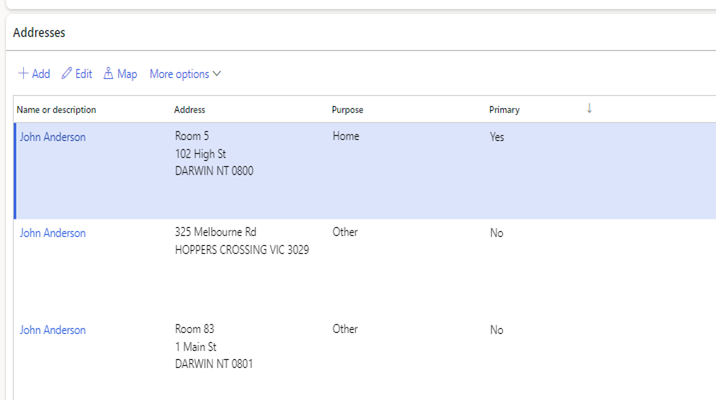
Client addresses
- Go to Invoice> Accommodation payment.
- A new accommodation payment header has been created for the new facility.
- Select the new header and click on <Add line>
- Populate the Agreed amount and Agreed Lumpsum and other relevant details.
- Click on <Save> and close the form.
- Refund via All Customers> Collect> Client refund proposal:
- Select the accommodation payment ID for the service the resident is departing from
- Select ‘Full refund’ in the refund type
- Click <OK>
- Validate details and then click on <Create journal>
- Navigate to the automatically created billing journal
- Review the details, then validate and post the journal
- The balance has now been transferred to the resident vendor account
- Go to Care services > Billing> Billing Journals
- Create a new Accommodation Payment Lumpsum invoice billing journal.
- Populate Date, Client account and Billing account name for the accommodation payment.
- Populate the service code for the new facility.
- Select the Billing code for the accommodation payment lump sum transfers.
- Select the new accommodation payment ID.
- Populate start and end dates.
- Populate the agreed lump sum amount.
- Validate and post the journal.
- Go to Care services > Journals > Receipt journal and create a new Lumpsum receipt journal.
- Populate the date, client account and description.
- Select the service code for the new facility and billing account name for the accommodation payment.
- Select the new accommodation payment ID.
- Click on <Settle transactions> to mark the invoice for the agreed lump sum in the new facility.
- Select Offset account type = Vendor
- Select Offset account = The resident vendor account
- Validate and post the journal.
Departures
When a <Departure Date> is entered on the service entry record, the <Departure Notice Date> is updated to the matching date if a date has not been supplied.
When a <Vacant possession> date is entered on the service entry record, the <Departure Date> and <Departure Notice Date> are both updated to the matching date if a date has not been supplied
Note: Departure notice date before the actual departure date will impact the Interest Payable calculations.
Navigate to: Care services > All customers > Care services > Related items > Service entries
- Open the service entry the resident is departing from.
-
Populate <Departure Date> or <Departure Notice Date>
- Select the <\Departure Reason>
- Select the <Deceased> flag if the client is deceased, and populate the Probate/Admin letter date when the probate has been received.
- Click on <Save> and close the form.
- Propose the interest payable in the Billing journal (refer to the Billing journal section for more information)
- Go to Care services > All Customers > Invoice > Accommodation Payments
- Run the ‘Accommodation payment calculation’ to ensure all balances are updated.
- Client Refund via All Customers> Collect> Client refund proposal:
- Select the accommodation payment ID and Select ‘Full refund’ in the refund type and Click <OK>
- Validate details and then click on <Create journal>
- Navigate to the automatically created billing journal, review and post as required.
The balance has now been transferred to the resident vendor account
