Getting Paid — All 11 Steps
← Go step by step
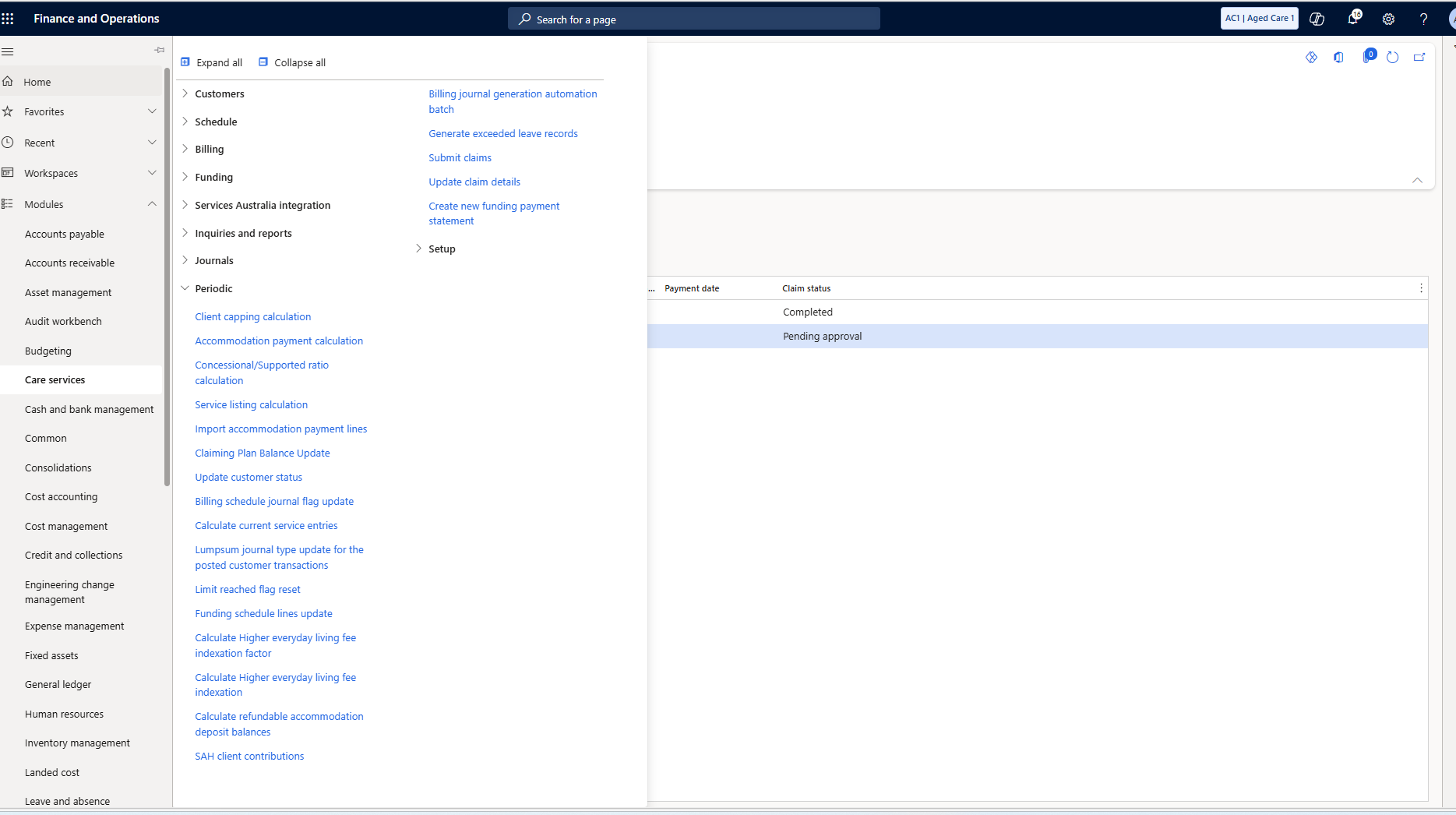
Step 1 — Run Create new funding payment statement
Go to Care Services → Periodic → Create new funding payment statement.
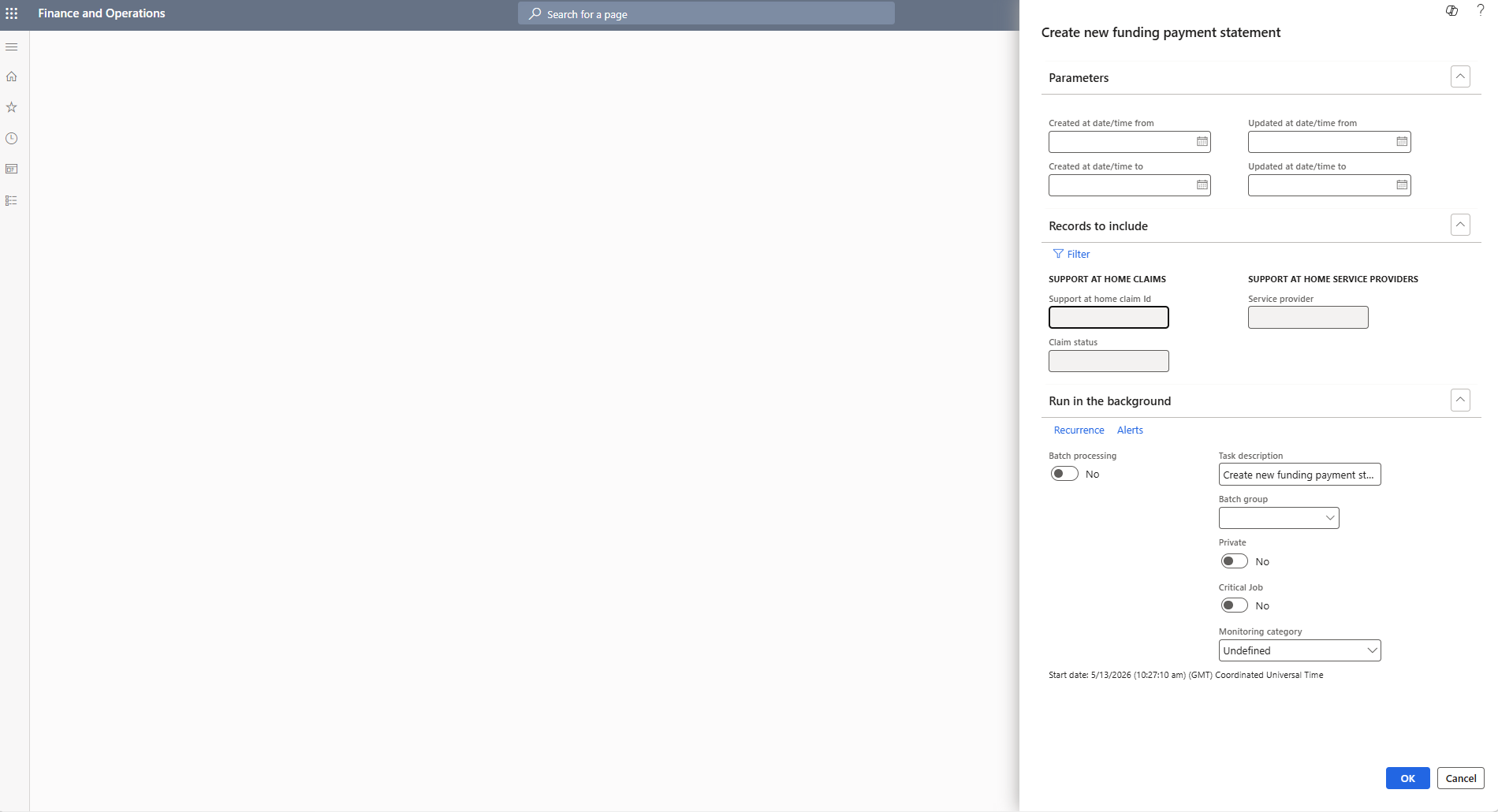
Step 2 — Set the payment statement parameters
The dialog opens. Filter by Support at home claim ID and service provider.
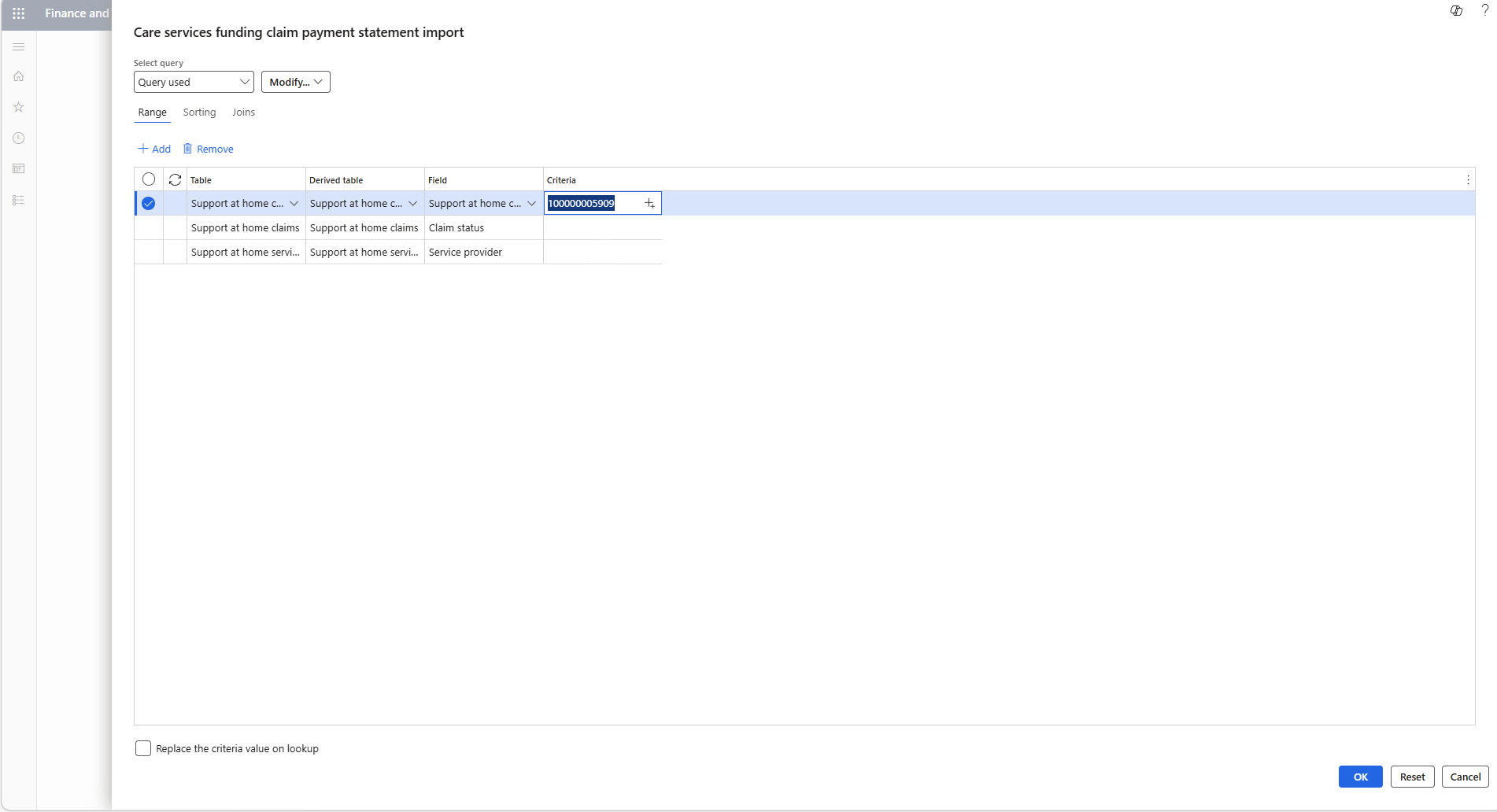
Step 3 — Filter by claim ID
Set the Support at home claim ID criteria to 100000005909. Click OK.
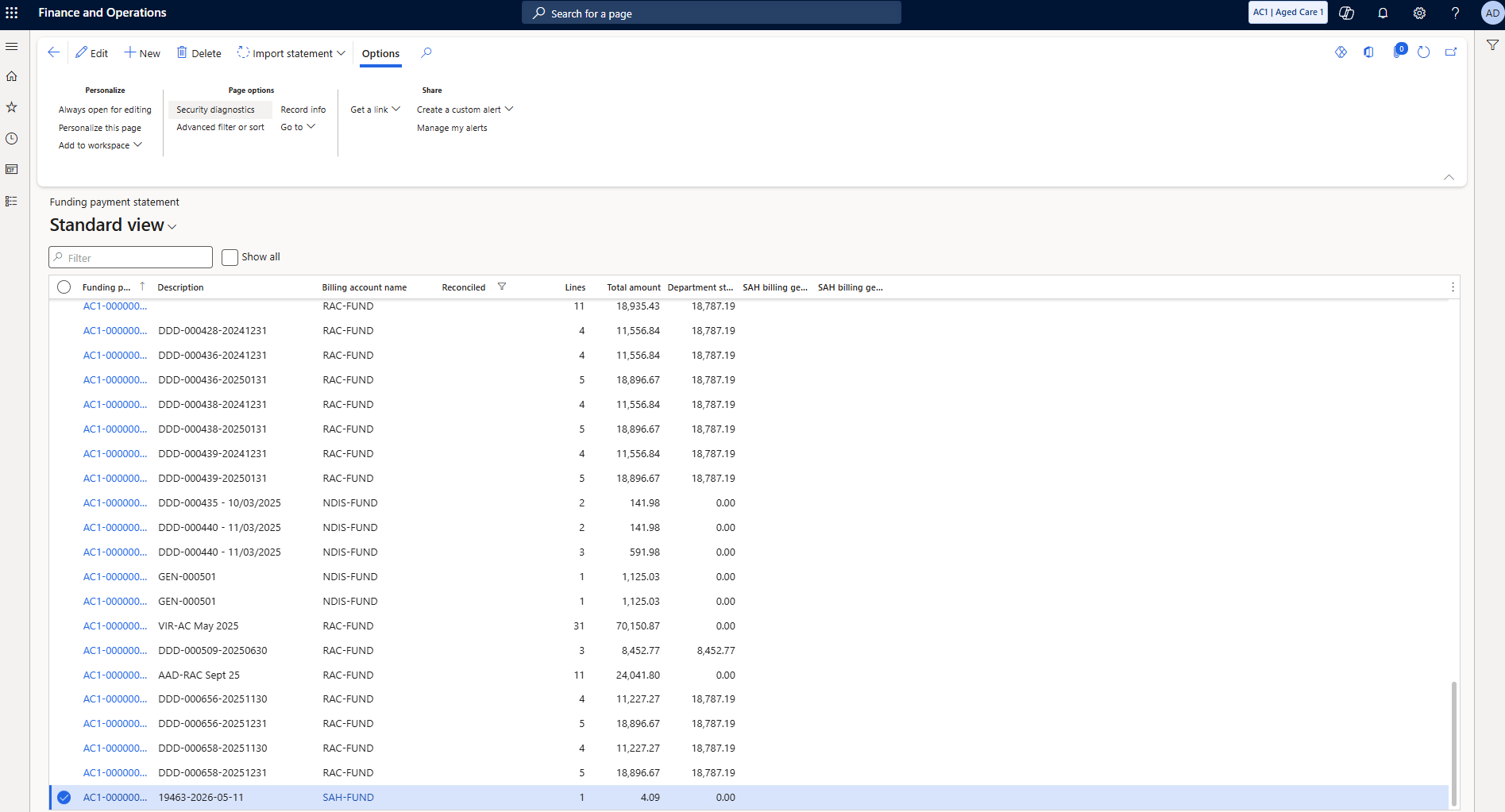
Step 4 — Open the funding payment statement
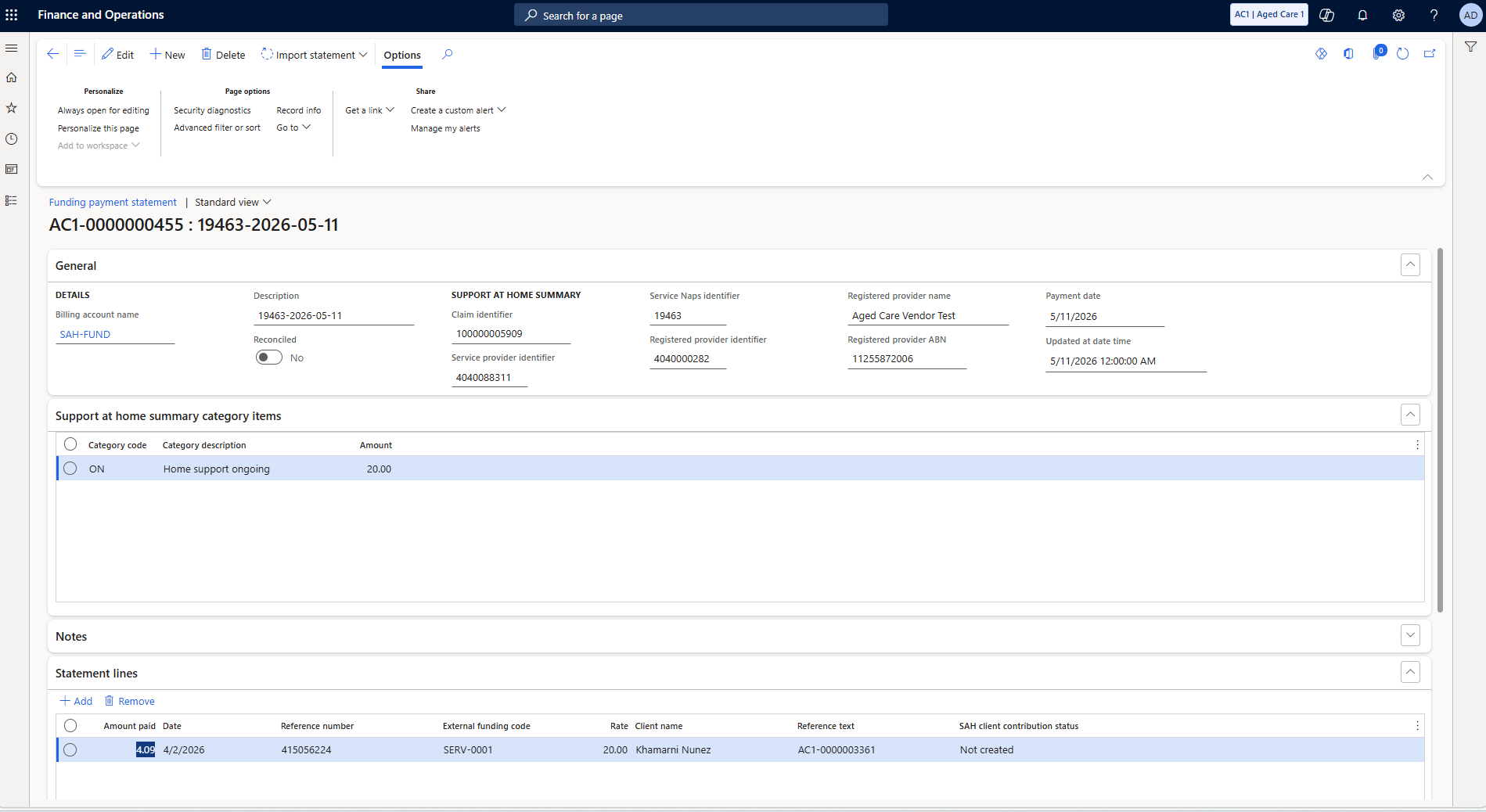
Go to Care Services → Funding → Funding claim payment statement. Open 19463-2026-05-11.
Step 5 — Review the payment statement detail
Claim 100000005909, payment date 5/11/2026. SERV-0001, $20.00 service, $4.09 paid. Khamarni Nunez.
Step 6 — Return to the funding claim form
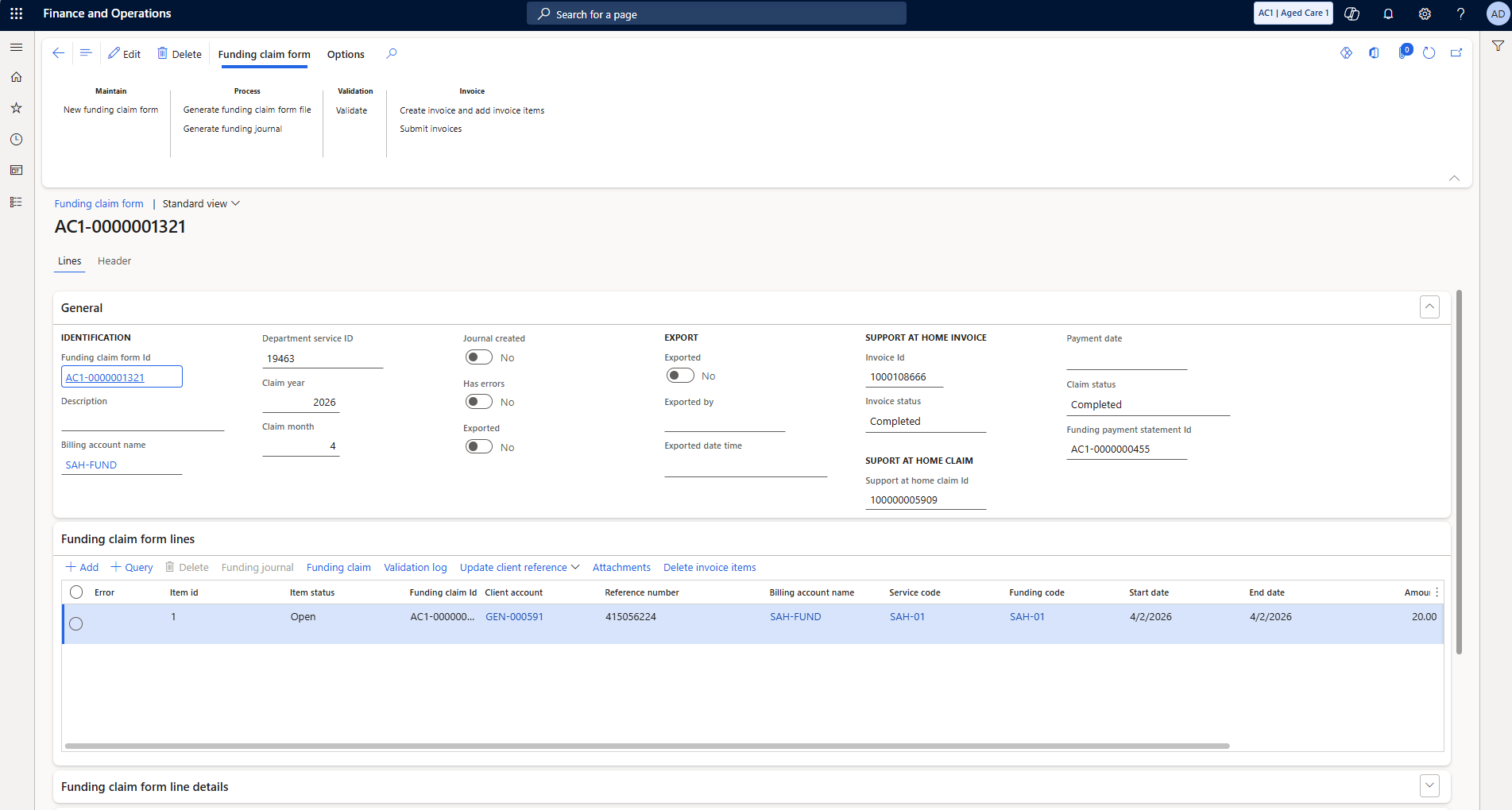
Navigate to funding claim form AC1-0000001321. Invoice Completed, Claim Completed, payment statement linked.
Step 7 — Generate the funding journal
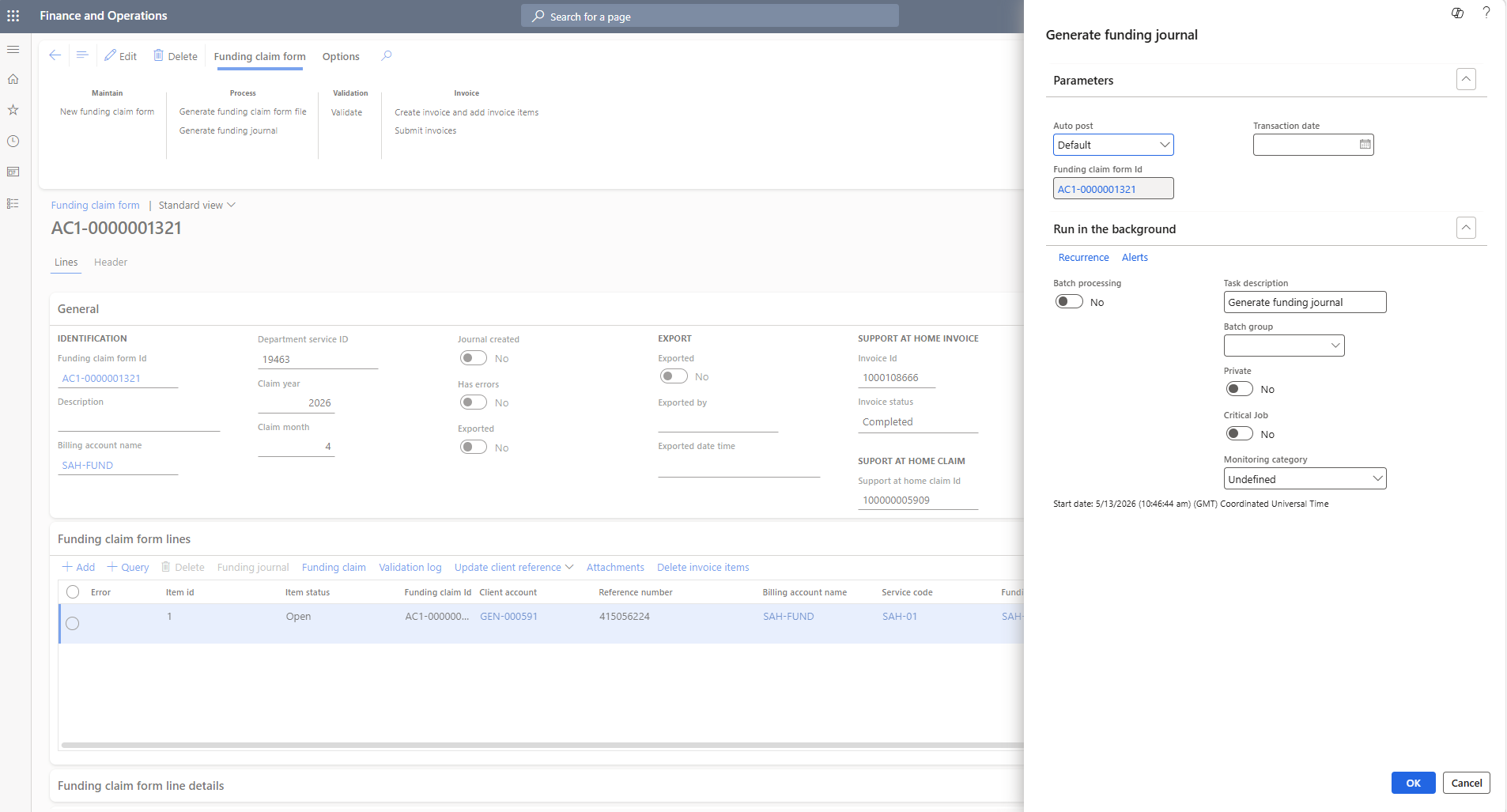
Click Process → Generate funding journal. Auto post: Default. Click OK.
Step 8 — Journal created
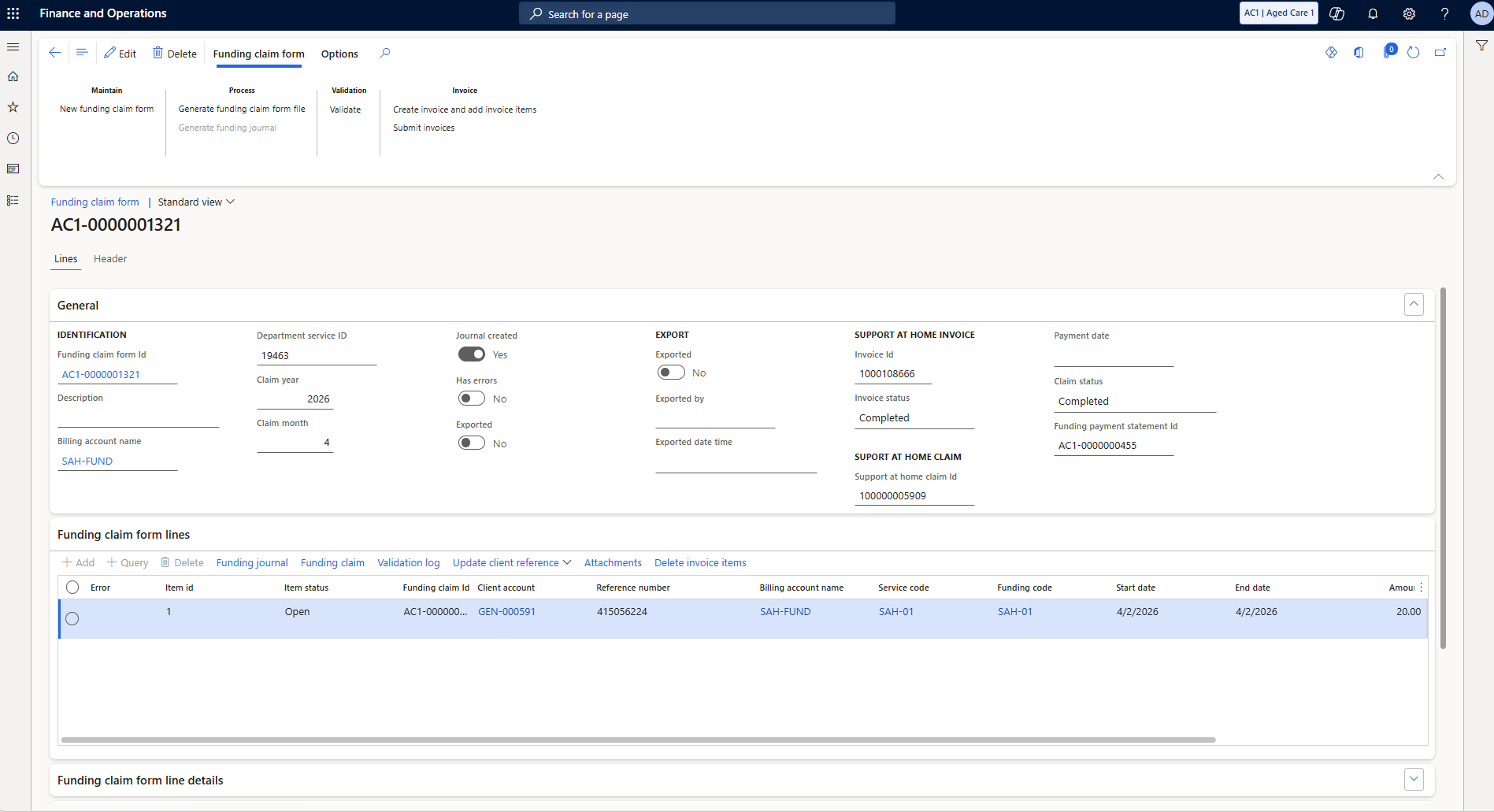
Journal created: Yes. The GL entry is posted. Generate funding journal is now greyed out.
Step 9 — Navigate to Funding reconciliation
Go to Care Services → Funding → Funding reconciliation.
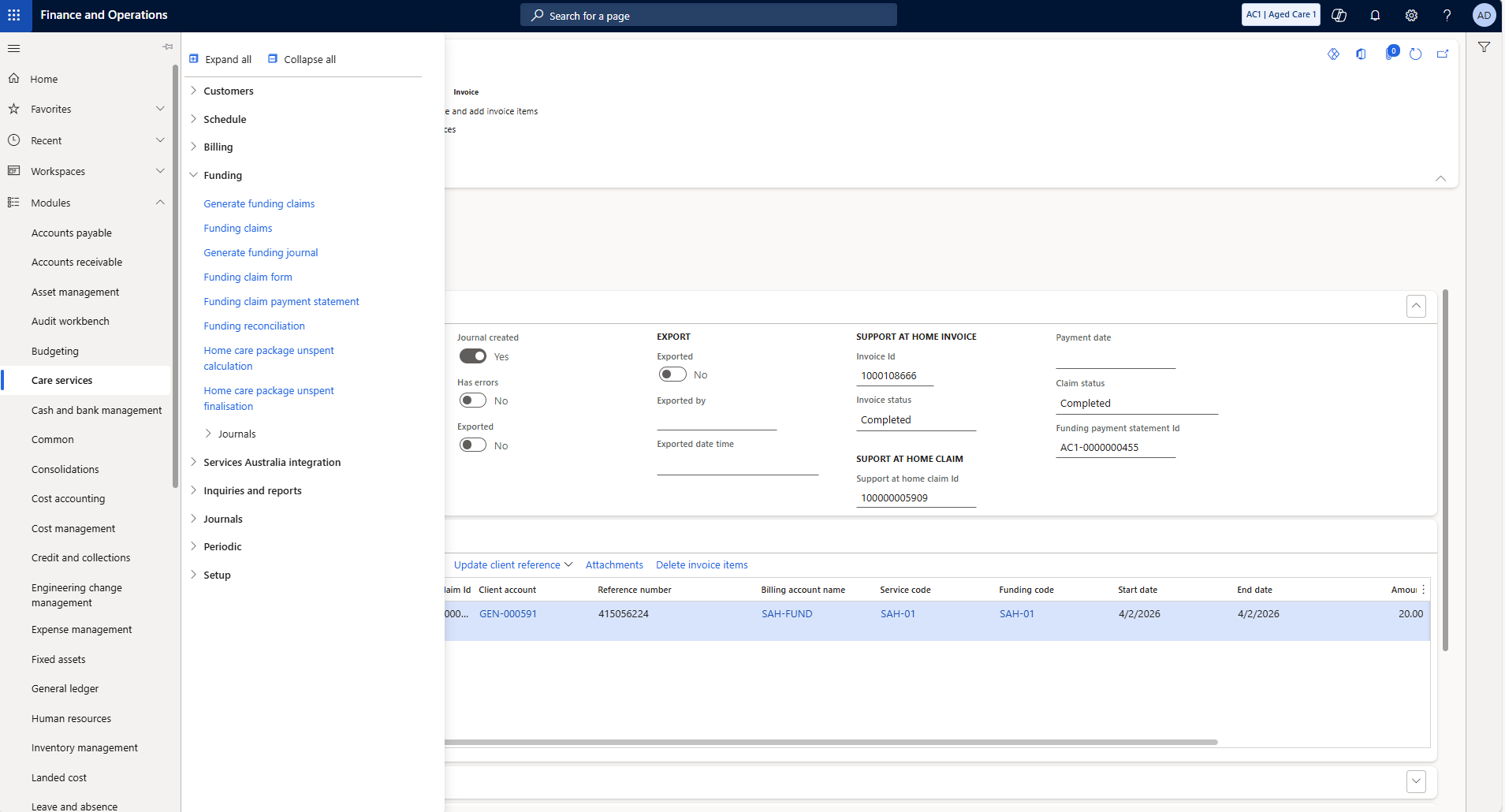
Step 10 — Data auto-populates
Reconciliation worksheet opens. Funding claim ($20.00) on the left, statement line ($4.09) on the right.
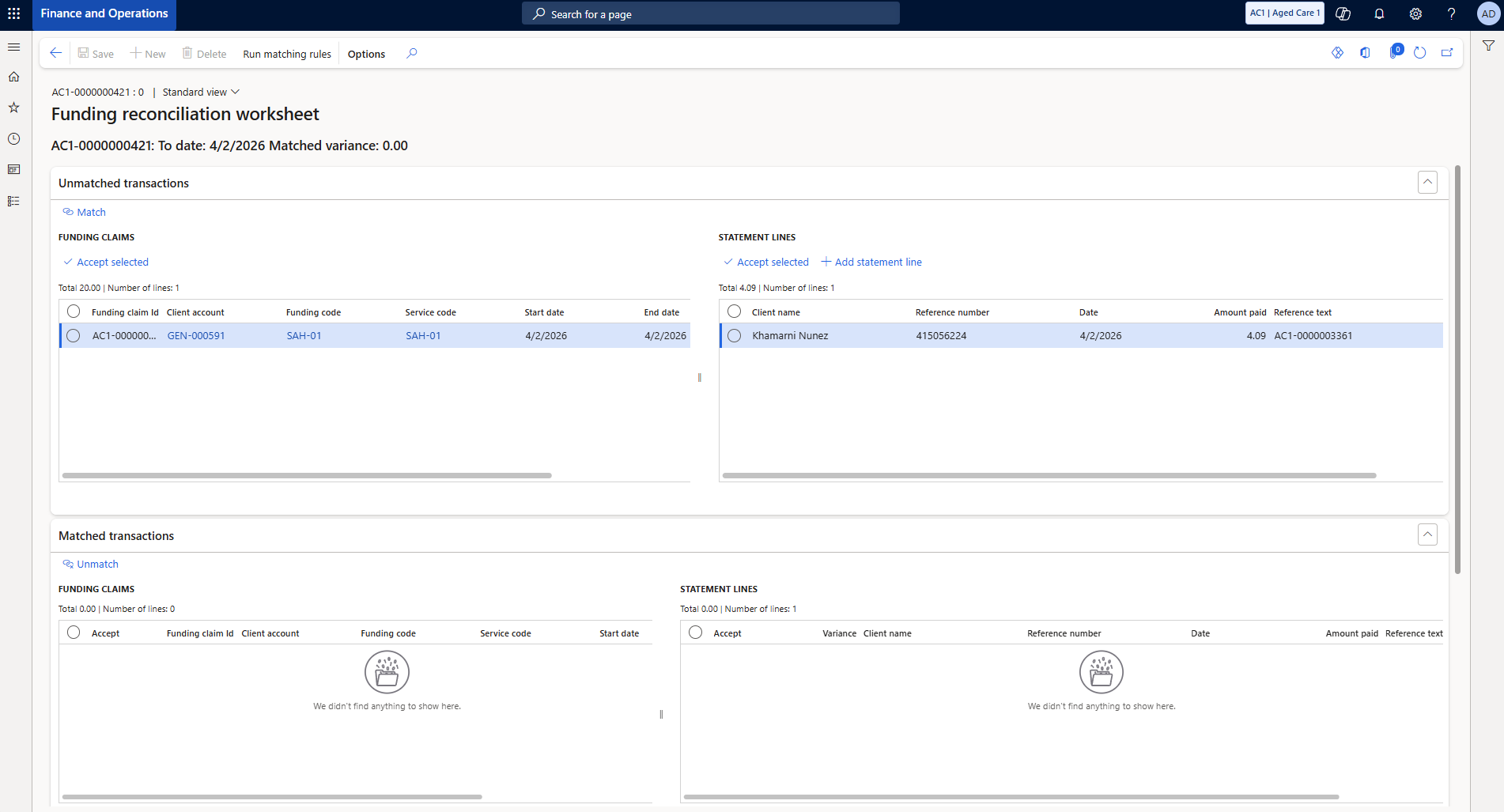
Step 11 — Match successful
Click Match. Unmatched clears. Matched transactions: SAH-01 $20.00 matched to $4.09. Variance 15.91.
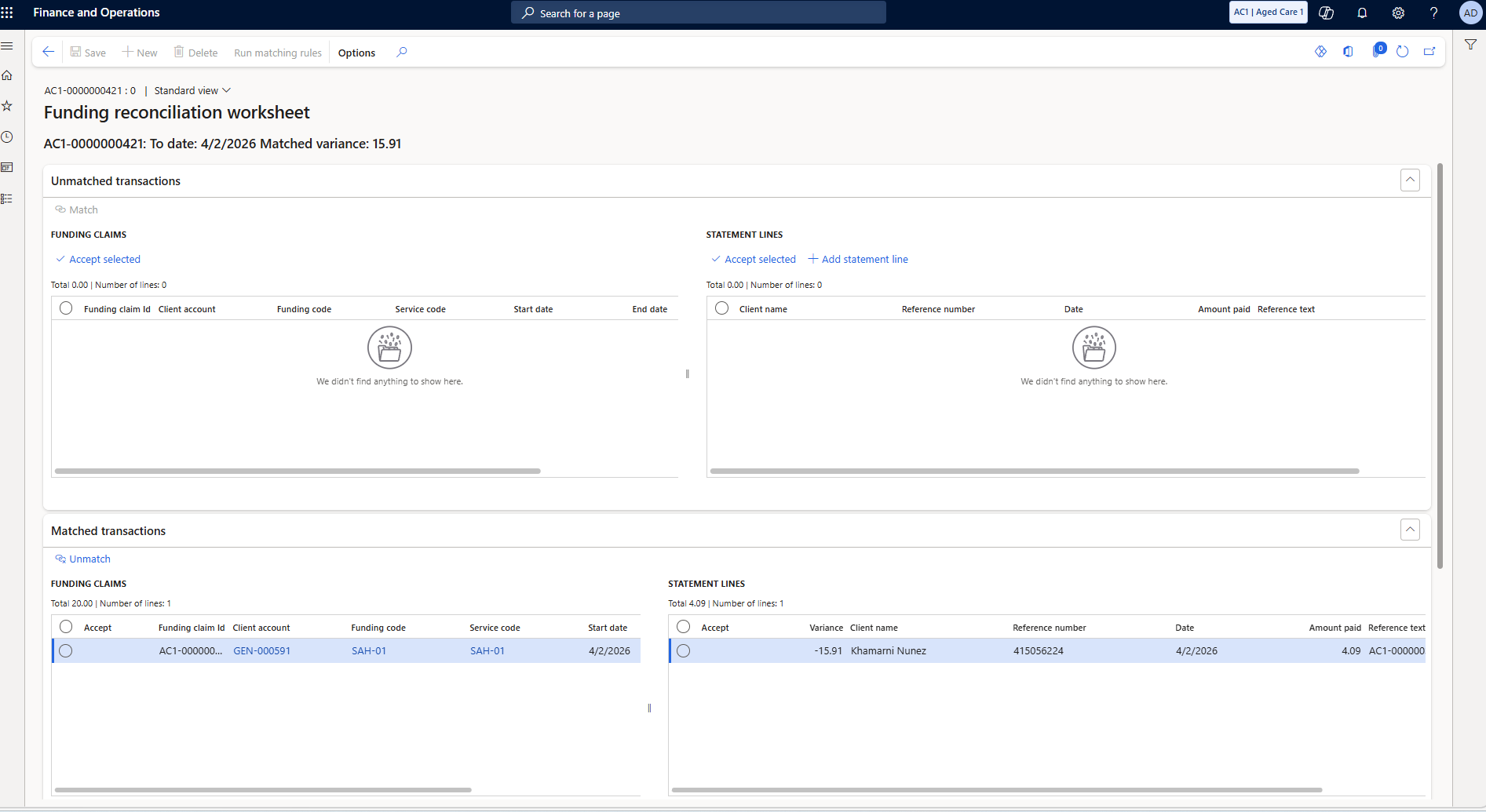
Closing the Loop →
