Care services customer ageing report
Navigate to: Credit and collections > Inquiries and reports > Customers > Care services customer ageing report
The Care services customer ageing report shows the open (unpaid) balances owed by customers, grouped by ageing period. It extends the standard Dynamics 365 Customer aging report with Care Services filters and options, such as billing account type, lump sum, billing codes, service codes, debt collection notes, departed customers and customer group subtotals.
Note: The report is in the Credit and collections module, not the Care services module.
Before you start
| Setup |
Description |
| Aging period definition |
Set up the ageing periods on the Aging period definitions page (Credit and collections > Setup > Aging period definitions). The definition must have at least 1 and no more than 6 periods. |
| Aged debtors report note purpose |
To show debt collection notes on the report, select the note type in Care services > Setup > Care services parameters > General > Reports. See Care services parameters. |
Parameters
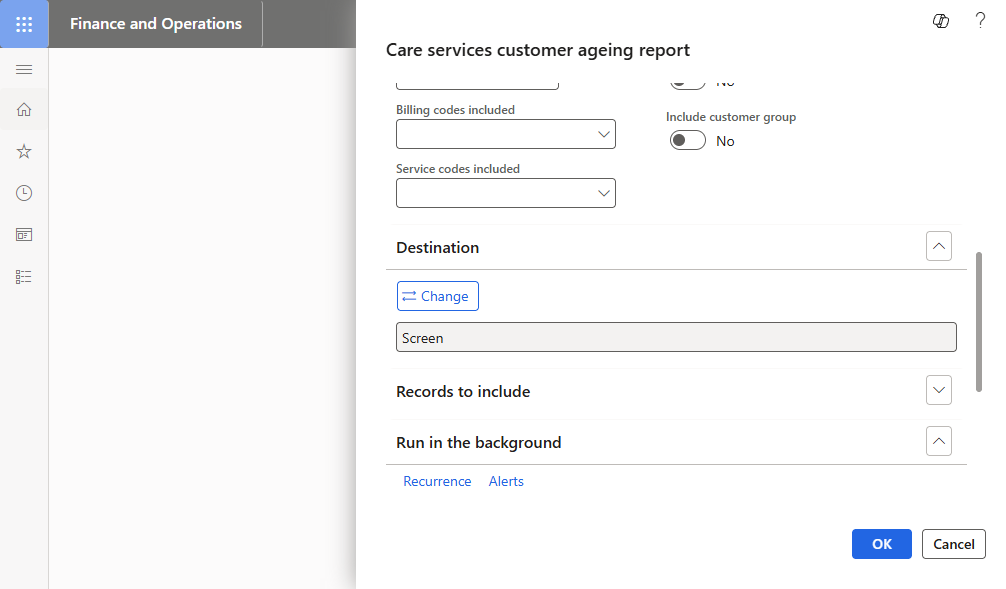
Parameters
| Field |
Description |
| Aging as of |
The date used for the current ageing period. Ageing periods are counted back from this date. |
| Balance as of |
The cut-off date. Only transactions that are open on this date are included. |
| Aging period definition |
Select the ageing period definition that sets the ageing period columns on the report. |
| Print aging period description |
Yes prints the description of each ageing period as the column heading. No prints the period dates. Default: No. |
| Day/Mth |
Select Day or Month as the unit the ageing periods are calculated in. Default: Day. |
| Billing account type |
Select the customer billing account type to report on: Accommodation, Customer, Residential care, Trust or Home based care. Default: Accommodation. |
| Lumpsum options |
All, Lumpsum only or Non lumpsum. Default: All.
Only available when the Billing account type is Accommodation. For any other billing account type the field is set to All and cannot be changed. |
| Billing codes included |
Select one or more billing codes to include. Leave blank to include all billing codes. |
| Service codes included |
Select one or more service codes to include. Leave blank to include all service codes.
This only filters the report. To show the service code on the report, also set Include service code to Yes. |
| Details |
Yes lists the open transactions under each customer, with a total for each customer. No shows one line per customer. Default: No. |
| Exclude zero balance accounts |
Yes leaves out customers with a zero balance. Default: Yes. |
| Negative balance |
Yes includes customers with a negative balance. Default: No. |
| Include debt collection notes |
Yes adds the debt collection notes to each customer line. The note type is set in the Aged debtors report note purpose parameter. Only the latest note of that type is shown. Default: No. |
| Include departed customers |
Yes includes departed customers that still have open transactions. No leaves them out. Default: No. |
| Include customer group subtotals |
Yes groups customers by customer group and adds a subtotal for each group. Default: No.
When set to Yes, Include customer group is set to Yes and cannot be changed. |
| Include service code |
Yes shows the service code on each transaction line. Use with Details set to Yes. Default: No. |
| Include customer group |
Yes shows the customer group on each customer line. Default: No. |
Records to include
Use Filter to limit the report to selected customers. The default ranges are Customer account, Customer group and Customer classification group.
Destination
Select where the report is sent. The default is Screen. Select Change to print, email or save the report to a file.
Run in the background
Set Batch processing to Yes to run the report as a batch job. Use Recurrence to schedule it and Alerts to set notifications, in line with standard D365 batch processing.
Report layout
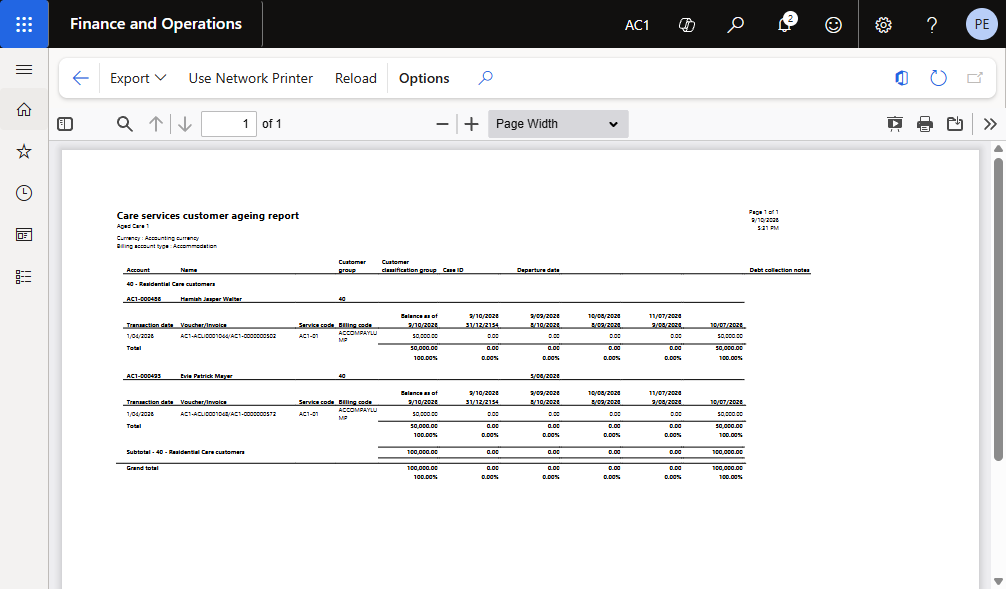
The report header shows the company, the run date and time, the currency (accounting currency) and the selected billing account type.
Customer line
| Field |
Description |
| Account |
Customer account |
| Name |
Customer name |
| Customer group |
Customer group. Shown when Include customer group is Yes. |
| Customer classification group |
Customer classification group |
| Case ID |
Case ID |
| Departure date |
Departure date of the client. Blank if the client has not departed. |
| Debt collection notes |
Latest debt collection note. Shown when Include debt collection notes is Yes. |
Amount columns
| Column |
Description |
| Balance as of |
Total open balance for the customer at the Balance as of date. |
| Ageing period columns |
One column for each period in the aging period definition. Each column heading shows the period’s date range, or its description when Print aging period description is Yes. The first column holds amounts dated on or after the Aging as of date. The last column holds the oldest amounts. |
Transaction lines
Shown when Details is Yes.
| Field |
Description |
| Transaction date |
Date of the open transaction |
| Voucher/Invoice |
Voucher and invoice number |
| Service code |
Service code of the transaction. Shown when Include service code is Yes. |
| Billing code |
Billing code of the transaction |
Totals
| Line |
Description |
| Total |
Total for each customer, with the percentage of the balance in each ageing period. Shown when Details is Yes. |
| Subtotal |
Subtotal for each customer group, under a customer group heading. Shown when Include customer group subtotals is Yes. |
| Grand total |
Total for the report, with the percentage of the total in each ageing period. |