Advanced bank reconciliation functionality
The fields as described in the following subsections are available to control the additional functionality for advanced bank reconciliation.
Setup
Bank Reconciliation Matching Rules
Copy matching rule
User can select an existing rule, select Copy matching rule on the Action Pane to create a copy of the existing rule.
User can then edit the new rule and activate.
Group by document number
Finance utilities functionality extends the automatic reconciliation matching rules by adding Group by document number to Reconciliation matching rules with Action Match with bank statement in ‘Step 1: Define the matching rule’.
Note: From 10.0.32 MS has added a feature called Ability to post detailed vendor and customer payments, but summarize amounts to bank account.
- If this feature is enabled and setup to summarise, journals that contain multiple lines that matches the criteria will be grouped into one bank transaction line.
- The new ‘Bank transaction summarization id’ is written to the Bank reconciliation’s Document number for the Bank transaction.
- This will affect companies that use Financial utilities parameter Populate bank transaction document number and Group by document number functionality on Reconciliation matching rules as the Payment journal’s ‘Journal batch number’ isn’t written to the Bank reconciliation’s Document number (if the journal contains multiple lines that matches the criteria).
The Finance utilities feature can be activated from Cash and bank management > Setup > Advanced bank reconciliation setup > Reconciliation matching rules
| Field |
Description |
| Group by document number |
This feature combines the D365 bank transactions amount that have the same Document number (populated with the Journal id or check number) during the Bank reconciliation process, from Run matching rules. |
Matching Parameter - Included In
If the Financial utilities parameter’s Extended matching rule operator is set to Yes, the option Included in is available for selection in ‘Step 1: Define the matching rule’.
When the Operator Included in is selected, D365 checks whether the value of Field is included in the value of the Statement fields.
- Contains (which is STD) means that the field Payment Reference in D365 contains the value of the Payment reference in the Bank File.
- Included in heading means that the field Payment Reference in D365 is included as a part of the value of the Payment reference in the Bank File.
Included in example:
| Basic Criteria |
Yes or No |
| Match Amount |
Yes |
| Match Date |
Yes |
| Match Document Number |
No |
| Match Transaction Type |
No |
| Match Payment Reference |
No |
| Field |
Operator |
Included in |
Value |
Statement Fields |
| Payment reference |
Contains |
Tick |
|
Document number |
| Source |
Matched |
Booking Date |
Debit |
Credit |
Bank Trx Type |
Document number |
| D365 Bank Trx |
|
|
|
|
|
|
| Line 1 |
X |
14/01/2018 |
|
1000 |
01 |
AAU1367611 |
| Line 2 |
|
14/01/2018 |
|
1000 |
01 |
AAU1367612 |
| Bank Statement Trx |
|
|
|
|
|
|
| Line 1 |
X |
14/01/2018 |
|
1000 |
699 |
CBA pmt AAU1367611 |
| Line 2 |
|
14/01/2018 |
|
1000 |
699 |
CBA pmt AAU1367613 |
In this example, when the above Reconciliation Matching rule is run, D365 Bank Transactions Line 1 will be matched with Bank Statement Transactions Line 1 because the Document number value “AAU1367611” is included in the value of the field Reference No “CBA pmt AAU1367611”.
Mark as New - Additional defaults
If the Financial utilities parameter’s Extended financial details for new transaction parameter is set to Yes, the option to capture the following details automatically for Mark as new bank statement lines can be selected.
- Offset account type (Ledger, Customer, Vendor or Bank) and details
- Financial dimensions - For Account (Bank) and/or Offset account
- GST
More detail for ** fields are discussed here.
| Field / Button |
Description |
| Financial Dimensions > Offset account |
Financial dimensions that have to be used to post the new transactions.
If the dimensions are filled in, it will override the financial dimensions set by default on the selected Offset account (Ledger, Customer, Vendor or Bank).
Else, financial dimensions set by default on the selected main account will apply with the new transaction.
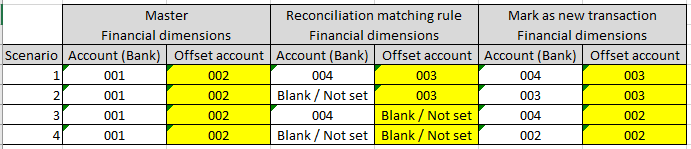 |
| Financial Dimensions > Account |
Financial dimensions that have to be used to post the new transactions.
If the dimensions are filled in, it will override the financial dimensions set by default on the selected Account (Bank).
Else, financial dimensions set by default on the selected main account will apply with the new transaction.
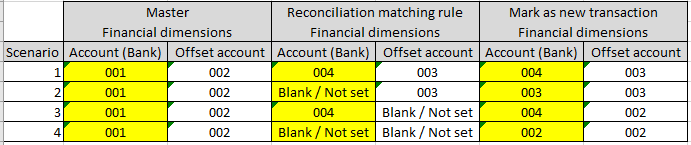 |
| Offset Company Account |
Defaults to the current legal entity.
Populates the new field Offset Company Account in the Bank Statement Line Details form when a Mark as new line is created. |
| Offset Account type |
Populates the new field Offset Account Type in the Bank Statement Line Details form when a Mark as new line is created.
Note: This field defaults to Ledger; Extended financial details only support offset account type Ledger, Customer and Vendor. |
| Offset Account |
Populates the new field Offset Account in the Bank Statement Line Details form when a Mark as new line is created. |
| Offset account bank statement field ** |
Enabled when Offset account type is set to Customer. Option to map a field from the bank statement for Offset account.
Offset account and Offset account reference bank statement field needs to be blank, will receive error if try to populate multiple fields when setting up a rule. |
| Offset account reference bank statement field ** |
Enabled when Offset account type is set to Customer. Option to map a field from the bank statement for finding the D365 customer account using Customer references
Ensure Reference type has been populated in Financial utilities parameters.
Offset account and Offset account bank statement field needs to be blank, will receive error if try to populate multiple fields when setting up a rule. |
| Settle transaction ** |
Enabled when Offset account type is set to Customer. When creating the customer payment journal for the customer, should it attempt to settle the invoice. |
| Settle transaction bank statement field ** |
Enabled when Offset account type is set to Customer. Option to map a field from the bank statement for the transaction (D365 invoice) to be settled in the Customer receipt journal line.
If Offset account, Offset account bank statement field and Offset account reference bank statement field are blank, this field will be used to find the D365 customer account to create the Customer payment journal line. |
| Auto-post customer payment journal ** |
Enabled when Offset account type is set to Customer. Indicates if the created (and settled if applicable) customer receipt journal should automatically be posted. If automatically posted, the newly created bank transaction(s) will also automatically be matched to the applicable bank statement lines. |
| Auto-post and transfer customer payment journal ** |
Enabled when Offset account type is set to Customer. Indicates if the created (and settled if applicable) customer receipt journal should automatically be posted. If any errors found (example stopped customer), the error lines will be moved to a new journal. Both customer payment journals’ Document will refer to the Bank reconciliation. If automatically posted, the newly created bank transaction(s) will also automatically be matched to the applicable bank statement lines. |
| GST Group |
Populates the field GST group in the Bank Statement Line Details form when a Mark as new line is created. |
| Item GST Group |
Populates the field Item GST group in the Bank Statement Line Details form when a Mark as new line is created |
| Description mask |
Ability to set a Description mask for Mark new transactions.
Editor provides the ability to set a combination of static fields and placeholders:
• Currency
• Description
• Amount
• Document number
• Entry reference
• Bank statement transaction code
• Reference No.
• Related bank account
• Name (Trading party)
• Bank account
• Bank account number
• Bank groups
Note: If File name mask is not populated, the Bank statement line’s Description will be written to new transaction’s Description. |
Customer payment and settle of invoice (1:1)
Reconciliation matching rules
This section will provide more details for ** fields from above section.
Finance utilities allows for creating and optional settling of one invoice and optional posting of customer payment journal. One customer payment journal is created for all the bank statement lines matched with the mark as new rule. For improved traceability the Reconcile ID is populated in the Customer receipt’s journal Document on the journal’s setup tab. The customer payment journal’s Date is set by the bank statement’s Booking date.
The following subsection will discuss scenarios when running a Mark as new rule with Offset account type set to Customer
- D365 customer account can be found by either of the following options. Target is Account in Customer payment journal line:
- Offset account is set to a specific customer account, or
- Offset account bank statement field is set to use a field from the bank statement field (example Trading partner), or
- Offset account reference bank statement field is set to use a field from the bank statement field. The bank statement value is used to find the applicable D365 customer account in Customer references, or
- If all of these fields are blank Settle transaction bank statement field (D365 invoice) will be used to find the D365 customer account
- Settle transaction determines if the created/posted customer receipt journal should attempt to settle an invoice:
- Yes - Uses Settle transaction bank statement field’s mapping to find the D365 invoice number in the bank statement line and populate the Invoice field in the Customer payment journal line. If the invoice can’t be settled in the journal line, the infolog will provide a warning which invoices couldn’t be settled.
- No - The customer payment journal line will not attempt to settle an invoice; Invoice field will be blank in the Customer payment journal line.
- Settle transaction bank statement field - Set which field from the bank statement will contain the D365 invoice (example Document number or Reference No.)
- Target: Invoice in Customer payment journal line, if Settle transaction is set to Yes.
- Auto-post customer payment journal:
- Yes - The customer receipt journal will be posted and automatically matched with the bank statement lines. A Match Id will be assigned for all the transactions and moved to matched on the Bank reconciliation worksheet when running the rule.
- No: The customer receipt journal will only be created. Once the user has reviewed and posted the customer payment journal, refresh the bank reconciliation’s worksheet to bring in the new bank transactions. User has to either use a match with bank statement rule or manually match the applicable bank statement lines with these new bank transactions.
The ability to set field format is available for the following fields:
- Offset account bank statement field
- Offset account reference bank statement field
- Settle transaction bank statement field
Select the Field format for the applicable field and set one of the following options:
- No format - The bank statement field will be used as-is.
- Fixed field position - Set Start position and Length.
- Delimited field position - Set Delimiter (default is space) and Field position.
- Custom format - Ability to use a regex format
The Example and Value field is automatically updated based on above selection.
The user can also paste/type their own example into Example to view the resulted Value from their setup.
Example result for each option:
| Option |
Setup |
Example
Bank statement field’s original data |
Value |
| No format |
|
xxUS-001xx |
xxUS-001xx |
| Fixed field position |
Start position: 2
Length: 6 |
xxUS-001xx |
US-001 |
| Delimited field position |
Delimiter:
Field position: 0 |
US-001 extra description |
US-001 |
| Custom format |
\*(.+)\* |
*US-001* |
US-001 |
Financial utilities parameters
Additional setup is also required on Financial utilities parameters to assign the following:
- Reconciliation customer payment journal name
- Method of payment
- Reference type - if using Customer references to find the D365 customer account
General ledger parameters
If Financial utilities parameter Populate unique voucher for each journal line is set to No, it is also required to configure General ledger parameters.
When the system creates a customer payment journal for the bank statement transaction, the one voucher could contain lines for multiple customers. Therefore, you must set up your system so that a single voucher can have multiple customer lines.
To enable a single voucher to have multiple customer lines, follow these steps.
- Go to General ledger > Ledger setup > General ledger parameters.
- On the Ledger tab, on the General FastTab, set the Allow multiple transactions within one voucher option to Yes.
- If you receive a warning message, select Close to accept the change.
Customer payment journal
Bank reconciliation
When the rule is run, a customer payment journal is created and the Journal id will be provided in the Message details
Customer payment journal
The following fields are populated in the created customer payment journal:
- Header fields
- Document - Populated from Reconciliation ID
- Posted - Determined by rule’s Auto-post customer payment journal
- Line fields
- Date - Populated from Bank statement line’s Booking date
- Account - Determined by offset details in rule
- Invoice - If rule is set to settle and invoice is provided in bank statement
- Description - Populated from Reconciliation matching rule’s Description mask. If Description mask is blank, it is populated with only the Bank statement line’s Description
- Credit - Bank statement line’s amount
- Offset account - Bank statement’s Bank account
- Method of payment - Set in Financial utilities parameters
Possible processing issues:
- Warning log: ‘Account % does not exist’
If the customer account can’t be found in D365, the bank statement line will be excluded from the customer receipt journal and the transactions won’t automatically match in the bank recon since the total values don’t match.
- Warning log: ‘Invoice % doesn’t exist’
If the recon matching rule is set to settle the invoice and the invoice can’t be found in D365, the customer receipt journal line will still be created without field Invoice being populated.
