Frequently Asked Questions
Support
For support on our products, please contact us at ECLANZProductSupport@dxc.com and our team will implement its best efforts to support your enquiry.
Where can I identify the installed version of the Finance utilities module
On the Navigation bar, select Help & support > About.
A list of installed models will be displayed on the Version tab. Scroll to DXC Finance Utilities. The version information will be displayed on the right (i.e. DXC Finance Utilities 10.0.240.2019443 (isv))
Finance utilities and GER connections uses the following:
- Microsoft .NET Azure Storage library
- File transfer protocal library (FTP)
- SSH.NET library for SFTP support
- Encryption algorithms for secure file transfer
- Connection details for all connection types are managed by the customer
ABN lookup for AU registered companies
- Makes secure HTTPS connections for ABN lookup requests against the Australia government web API.
- Connection details are managed by the customer
Troubleshooting
Product is installed but functionality not visible
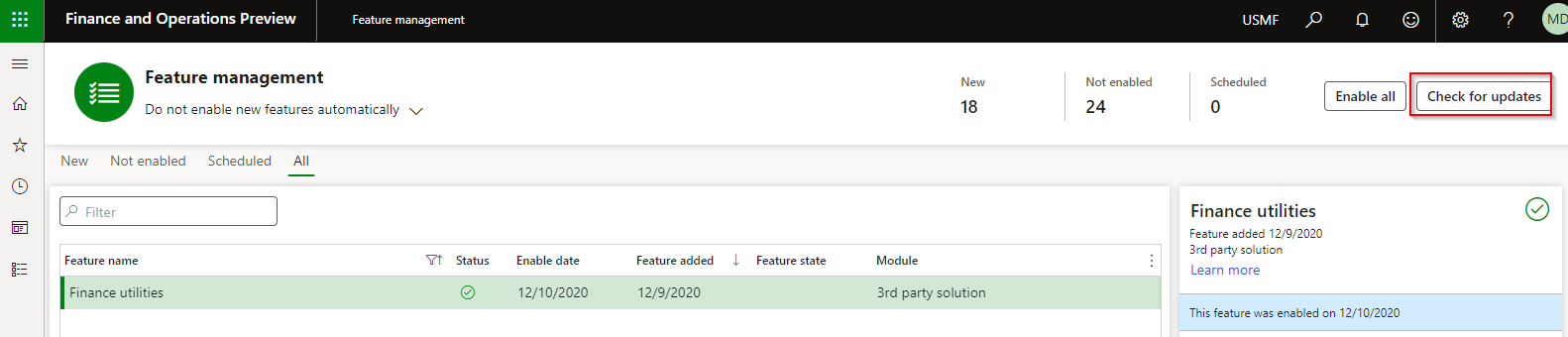
If the product is available in About > Version, check if it has been enabled in Feature management.
If you don’t see Finance utilities, click Check for updates.
Enable the feature.
Bank statement doesn’t import
Issue
Bank statement doesn’t import.
Error: An error occured when importing the bank statement file
Resolution
To check bank account mapping, navigate to Cash and bank management > Setup > Advanced bank reconciliation setup > Bank statement format
Things to check:
- Field delimiter and Record code field position (if applicable). Else the fields can’t be extracted and matched.
- Custom format > Lines: Bank account number. Compare:
- Import file’s bank account: Does it contain bsb+account or just account?
- Company bank accounts: Bank account number field only (not bsb): Does it match to import file’s bank account number? If import file contains bsb+account and your bank setup is split into bsb and bank account number fields, set up appropriate start position on Custom format > Lines.
If mapping is correct, check if DXCEncryption has been installed.
Generating AP payment - AuthenticationFailed
Error
AP > Payments > Vendor receipt journal
When Generating AP payment:
<Error>

<Code>AuthenticationFailed\</Code> <br>
<Message> <br>
Server failed to authenticate the request. Make sure the value of Authorization header is formed correctly including the signature. <br>
</Message> <br>
<AuthenticationErrorDetail> <br>
Signature did not match. String to sign used was <br>
</AuthenticationErrorDetail> <br>
</Error>
Resolution
AP > Payment setup > Methods of payment
If Enable file parameters is set to Yes on your Method of Payment, the File format requires a value.
Generating AP payment - Total line order
Error
Bank sends an error for the Vendor EFT payment for issues with the total debit or credit amounts.
Resolution
Cash and bank management > Bank statement reconciliation > Bank accounts
Select the applicable bank account and select the applicable order in field Total line order.
Options are:
- Total net, total credit, total debit
- Total net, total debit, total credit
- Total credit, total debit, total net
- Total debit, total credit, total net
User guide
Payment advice report – Vendor bank details missing
Issue
AP Payment advice doesn’t show Vendor bank details:
Resolution
Select the Finance utilities report on Payment advice report’s Print management.
Saving to secure location
If there is an error saving the file to secure location and Stop processing on failure was enabled on Electronic reporting destination, the processing will error and Payment status remains None. Example error: The process stopped because the delivery of file ‘%’ to the destination failed. The payments cannot be generated.
Check setup on the applicable Electronic reporting export connections
Encryption
Issue
Your export/import connection is setup to use DXC encryption / decryption and you receive error ‘The remote server returned an error: (403) Forbidden.’
Resolution
This error indicates Azure blob storage connection string has expired. Options:
- If still want to use SAS URL to Azure blob file to store the encryption keys: Create a new string
- From Finance Utilities 10.0.42.202504081 the following two new options are also available:
- Still using Key vault, but secrets can be stored in Azure containing base 64 encoded data of the actual keys into D365 key vault. These secrets will then be pulled into FinOps as base64, and decoded before being used for encryption/decryption purposes.
- Using Key source String: Store keys within FinOps without Azure and Key vaults
Number sequences are not available to setup
To load all new number sequence references click the button Reset on:
Organization administration > Number sequences. Select Manual cleanup > Reset on the Action Pane.
Budget import
Issue
Receive error ‘No budget lines were imported succesfully. Review setup on budget utilities parameters.’ when importing the budget file.
Resolution
Compare file’s values to setup in ‘Budget utilities parameters’. For example does the financial dimensions in file match setup in field ‘Dimension format’.
Static IP address required for SFTP connection
Where the bank requires a static IP address for connections for sending bank payment files to their SFTP
Options
- Send file from D365 F&O via an Azure Logic App with a static IP
- Utilize the API option in Finance utilities connection
